Set up your team
Before you run more than one agent, save yourself some typing. In this
tutorial you give the hello group a startup context, a standing brief
that every agent in it starts with. Then you save the spawn dialog's
settings as a spawn profile, so every later agent starts the same way in
two clicks.
You need: Your first agent completed, with alice
in the hello group.
1. Give the group a startup context
Everything an agent should know about your project, whatever its task, belongs in the group's startup context: what the project is, how you like work done, which commands to run before pushing.
Open the hello group's ⚙ menu, next to the group name, and choose
⚙ settings…. Write the context under Startup context:
This is my-project, a small CLI written in Go. Work on your own branch and open a pull request when a change is ready. Run go test ./... before you push.
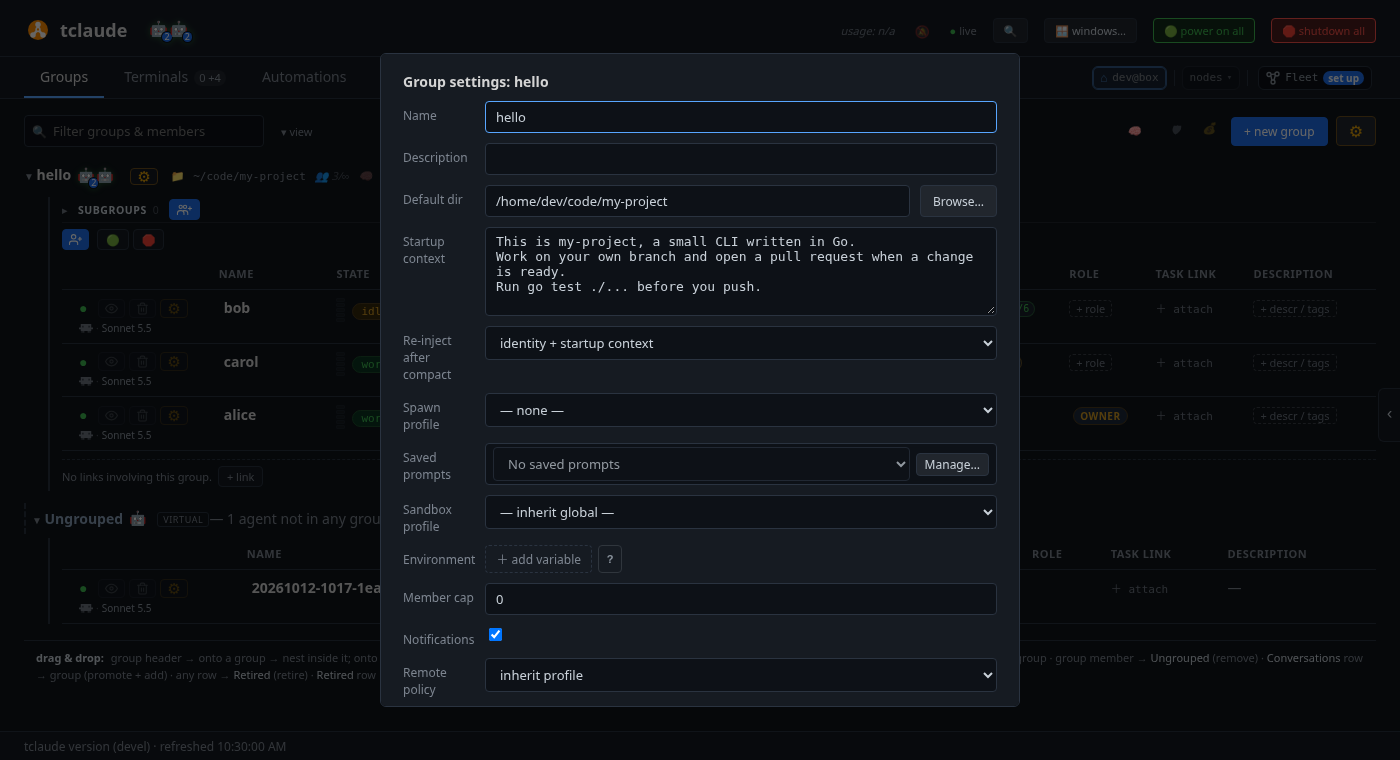
Click Save settings. Every agent you start in hello from now on gets
this text in its first message, next to its own task. Agents that are
already running pick it up after their next compaction.
Long tasks fill an agent's context window, and the harness then compacts the conversation into a summary. The summary can lose the startup brief. Re-inject after compact makes tclaude send the brief again after every compaction. Leave it at identity + startup context.
2. Save a spawn profile
The spawn dialog has many fields, and most of them are the same every time: harness, model, effort, permission mode, sandbox. A spawn profile saves them under a name.
Click hello's spawn button. Set Harness, Model and Effort the
way you want your everyday agents to run. Then click Save as profile…,
next to Profile at the top of the dialog. The profile editor opens,
filled in from the dialog. Name it worker and click Save profile.
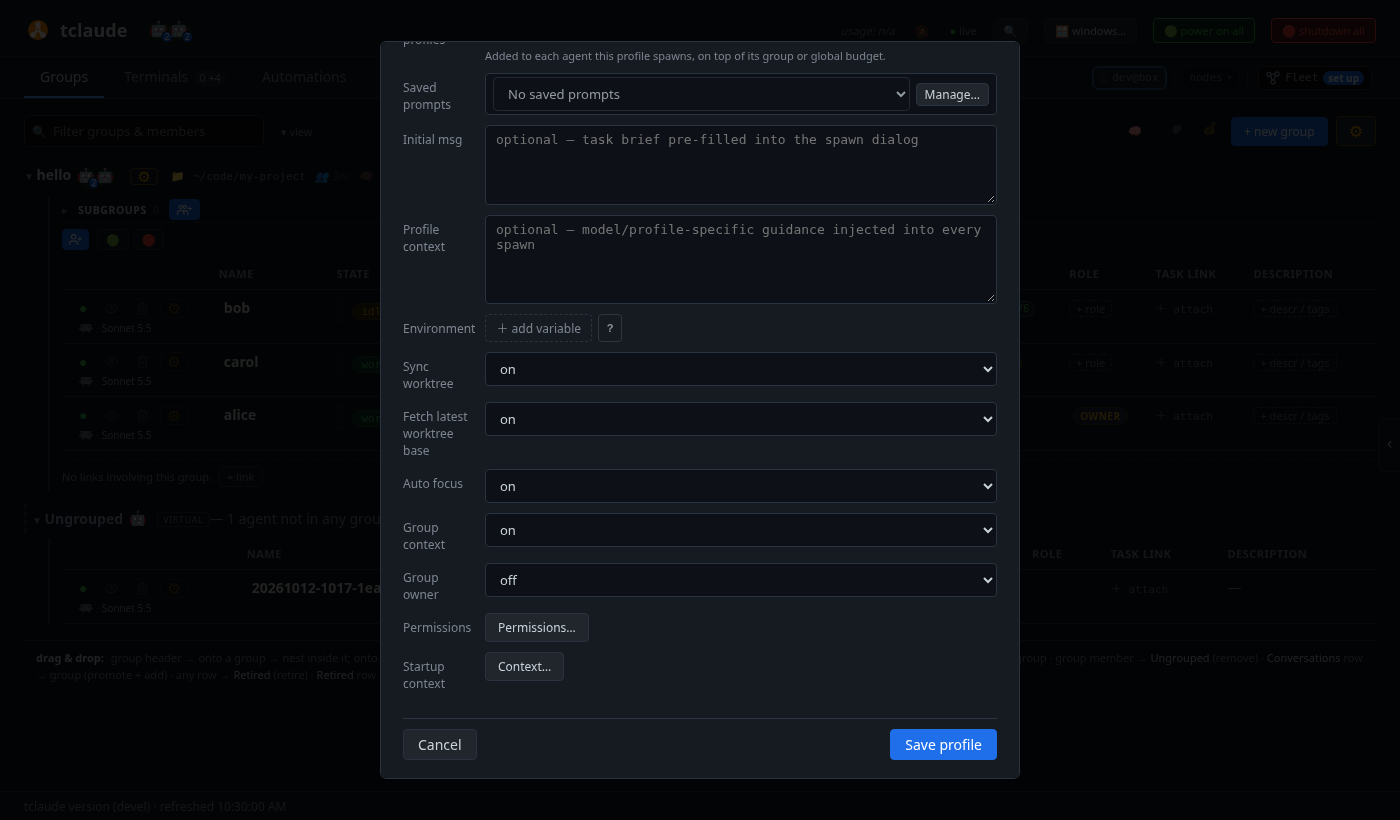
A profile stores the launch settings and the agent's identity fields. It does not store the directory or the worktree, which come from the group. Further down, the editor's spawn defaults are worth a look:
- Initial msg: a task brief that pre-fills the spawn dialog. Leave it empty for a general-purpose profile, and write the task when you spawn.
- Profile context: guidance for every agent started from this profile, on top of the group's startup context.
- Auto focus: whether the new agent's terminal opens in Terminals right away. It is optional. Turn it off if you start many agents and watch them from Groups.
- Group context: whether the group's startup context goes into the agent's first message. Keep it on.
- Group owner: whether the agent owns its group. The next tutorial uses it.
To change a profile later, press Ctrl K (⌘ K on a Mac) and choose Manage spawn profiles….
3. Start an agent from the profile
Click hello's spawn button again and pick worker under Profile. The
dialog fills in. Write a Name and an Initial msg, check that
Include group default context is ticked, and click Spawn.
A few shortcuts make this faster:
- Spawn profile in ⚙ settings… makes a profile the group's default, so the spawn dialog starts from it.
- Ctrl K (⌘ K on a Mac) opens the command palette. Type
spawn workerto open the spawn dialog with the profile already picked.
Go deeper
Agents and groups → Group startup context and Spawning and lifecycle → Spawn profiles and roles.
From the terminal
tclaude agent groups set-context hello --file brief.md
tclaude agent profiles ls
tclaude agent spawn hello --profile worker --name dave \
  --initial-message "Summarize the open TODO comments."
What you learned
- A group's startup context is the standing brief every new agent in it starts with. tclaude sends it again after a compaction.
- A spawn profile saves the spawn dialog's settings under a name. Save as profile… creates one from the dialog.
- Pick a profile under Profile, or make it the group's default.
Next: Run a team through a lead.