Companion and Steward
The companion is a floating window that keeps agents' terminals with you on every dashboard tab. The Steward is a helper agent that lives there: ask it what you can do, how things are set up, or to get work started.
Opting out of stewards
The companion, the Steward, drawing boards, the fleet brief and decisions are always on. None of this spawns an agent or grants a permission: a Steward exists only once you make one.
To opt out of stewards, uncheck Stewards at the top of
Config › Steward, or set steward.disabled to
true in config.json. Then:
- No Steward can be summoned or handed the role. Summon and handover answer
404
stewards_disabled. - The companion shows no Steward: no chips, no summon or resume in its + menu, and Ctrl+. and the Steward's spoken phrase do nothing. Its windows stay, so drawing boards, pages, terminals and agents' chats still float over the dashboard.
- External stewards are refused, whatever
steward.external_enabledsays.
Drawing boards, live pages, overlay windows, the approval panel, decisions and the fleet brief stay on. A Steward already running is not stopped; retire it yourself. You don't need to restart anything; the next dashboard refresh picks it up.
The companion isn't available in a peer's per-node view or in pop-out windows.
Using the companion
The ✦ Steward pill sits in the footer, next to Open PRs, with its status and any decisions and permission requests waiting on you. Any other minimized window has a pill in the dock. Drag the Steward's pill to move the row to one of three spots in the footer, or to any of 16 spots around the edges: the corners and quarter points of the top and bottom, and the quarter points of each side. The footer's spots are offered while the row fits in its free room, where it covers no work. A row that doesn't fit there rests on the page at the last spot it had there, or at the bottom right, until it fits again. Outlines show the spots, Esc cancels, and the window then opens from there until you move it yourself. A spot you chose before the footer became the default is kept. A pill can show:
- needs you: a permission prompt or question is waiting.
- 🔑 approval: the agent asked for permission.
- decide: the agent asked you to choose.
Hover the Steward's pill, or a chat's pill in the dock, to peek at the agent's last lines. It's read-only, and your keyboard stays with the page.
The Steward lives in an ordinary overlay window, with any other agents you keep at hand as its tabs. Click its pill to open that window, or press Ctrl . anywhere to open or minimize it. With no Steward running, the pill opens the page that summons or resumes one. No window is special: an agent you open without picking a window joins the Steward's window, or the one holding that page, or else the chats you used last. With none of those, it gets a window of its own. The window stays above the page without blocking it, and comes back when you reload the tab.
- Move it by its title bar. Resize it from any edge or corner.
- Split the room with any windows, drawing boards and chats alike: snap one to the left and one to the right, and they fill the room and share a line. A corner stays a corner beside a half or another corner, and the cell nobody took stays empty. Drag a line to redistribute, and it is remembered.
- Drop targets show for the whole of any window drag, drawn over every window: strips along the room's left, right and bottom edges and its corners, a box at the centre of each empty cell (and of the space beside a window snapped alone), and a marker on each free edge of a tiled window. A window snaps, fills or splits only when you let go over one of them, and the one under the pointer lights up with a preview. Let go anywhere else and it floats where it is, so a window moves freely over a split. Boxes and markers come first: one under the pointer takes the drop even where it sits on a title bar's tabs or the Collab strip. Over a split, the edge and corner strips are cut where they cross its cells, and each piece acts on the cell under it: over an empty cell it takes that cell's part, over a window it splits that window on the strip's side. A box fills its whole cell. A marker splits its window on that side, so two windows, 2+1 and four are all possible, and four around one crossing drag together at the crossing. Bring the pointer near the centre of a line for a detach button, which unlocks that line: the windows stay snapped where they are, the line goes, and each side resizes from that edge on its own, so a space or an overlap can open. Drag an edge back near the other side's and a preview shows the snap: release there and the line is shared again, or press Esc to leave things as they were. The other lines of a nested split or a quad stay as they are. A window that leaves never moves the others. Minimized or maximized, it keeps its cell and goes back into it. Closed or dragged out, by its title bar or by its tab when it has only one, it leaves its cell empty. While you drag, that cell is an empty cell like any other: let go on its box, or on the room's edge over it, and the window goes back in. Let go anywhere else off a target and it floats where you let it go: a dashed outline shows that it will float. A later drag can drop any window on the empty cell's box. The last window stays where it is. Pairs fill the room while it holds both windows at their minimum size.
- Snap it by dragging against the left, right or bottom edge to make a side panel or drawer, or into a corner to fill a quarter. Pull a snapped window's free edges to resize it; each spot keeps the size you gave it, across reloads too.
- Snap Assist follows your snap: the largest space it left empty shows a card for each overlay window outside the tiling, minimized ones too. Click one, or move with the arrow keys and press Enter, to put it there, and the next empty space asks until none is left. A click anywhere else, Escape, or any drag stops it. It never shows after a reload. Config > Overlays > Snap Assist turns it off.
- Give a chat its own window by dragging its tab off the title bar, or with ⚙ > Open in overlay. It is the same terminal, and it moves, snaps, splits, minimizes and closes on its own. Drag its tab onto another window to join them again. Open windows come back after a reload. The agent keeps running when its window closes.
- Each agent is a tab. + summons the Steward or adds another live agent. – on a tab sends it to the dock, and × on a tab detaches it to the background, as the window's × does for every tab. Either way the agent keeps running. × on its dock pill removes it for good.
- Scribes and Stewards get a tab by themselves. One you remove stays removed until you bring it back with +.
An offline agent's tab has Resume. A tab detached into a browser window has Bring it back here. Moving an agent to the Collab tab closes its tab, since an agent is in one place at a time.
Focusing an agent from anywhere shows it where it already is. A row's eye, its cog, the palette and a message's link restore its overlay window and raise it, and only otherwise open a terminal.
Title bar buttons
| Button | What it does |
|---|---|
| 🛡 sudo | Shows while the agent has elevated access. On a Steward, opens the sudo editor |
| ✦ N | Shows while agents wait on the Steward roster, and opens the roster |
| 🔑 N | Shows while permission requests wait, and opens the approval panel |
| 🔈 / 🔊 | Turn voice on or off for this agent |
| ✉ | Send a queued message (Ctrl M) |
| ⚙ | Everything else, listed below. Type to filter it |
| − | Minimize to the dock (Ctrl .) |
| ⇄ | Open it in the Collab tab. Where it cannot go there (a window with no Collab place), this is □: maximize, or restore the size it had |
| × | Close the window. Its tabs leave the overlay and the dock, and keep running in the background: open them again from the Groups tab, the palette or Collab. On a window holding a running Steward the Steward asks first, then shuts down, like Shut down… |
Under ⚙, each shown when it applies:
| Item | What it does |
|---|---|
| Open in the Collab tab | Move it to the Collab tab |
| Maximize / Restore | Fill the room, or restore the size it had. A double click on the title bar does the same |
| Open in overlay | Give it an overlay window of its own |
| Open in separate window | Move it to a browser window of its own |
| Morph | Move, Teleport, Clone, Recall home, or relaunch it on another harness, model or profile |
| Clear context | Clear the agent's context, after asking (not for shell agents) |
| Permissions | Edit permissions (Steward only) |
| Sudo | Open the sudo editor (Steward only) |
| Stewards | Open the Steward roster |
| Shut down… | Shut the Steward down, after asking (Steward only) |
The last three are plain symbols on the far right, as elsewhere in the dashboard. Config > Appearance > Window controls can opt in to your OS's own window buttons instead: traffic lights at the top left on macOS, flush in the top right corner on Windows, and round GNOME-style buttons on Linux, each with minimize, maximize and close (the Collab move is then on ⚙). Match my OS picks the one for the system your browser runs on. Classic keeps a plain minimize and close in the bar. In every look, a double click on the title bar's empty space maximizes or restores.
Each tab has the window's two verbs, in the same order: – (Minimize to dock) sends that tab to the dock and leaves it running, on a Steward's tab too, and the Steward's pill brings it back. × (Detach to background) is the window's × for that one tab: it leaves the window and the dock and keeps running. On a running Steward's tab it asks first, then shuts down, as the window's × does. The tab showing always has both buttons; the others show them under the pointer or keyboard focus.
Dragging a maximized window by its title bar also restores it.
Overlay tabs
Every overlay window is a row of tabs, and a window can hold any mix of chats, shells, drawing boards and process editors (Processes). The title bar tools belong to the tab showing. A chat's draft stays while another tab shows, and a minimized chat keeps its terminal for a few minutes.
- Reorder: drag a tab along its strip.
- Join: drag a tab onto another window's title bar. A marker shows where it lands.
- Drag out: pull a tab well off its strip, and it opens in a new window at the drop point.
- Drag to the Collab tab: drop a tab on the Collab tab's strip, and it lands there beside the tab under the pointer, where a marker shows. Drop it on Collab in the main nav to put it at the end; resting it there a moment switches to that view, so you can carry on to a spot on the strip. A tab that can't be a Collab tab stays where it was.
- Move a whole window: drag the bar around its tabs. A window with one tab also drags by that tab, and dropping it on another window's title bar joins that window.
- See every tab: when a window can't show all its tabs, scroll over them with the wheel, or swipe along them on a touch screen. The other drags work with a finger too.
- Group: right-click a tab (or Shift+F10, or press and hold on a touch screen) for
New group from this tab,Add to "<group>",Remove from groupandMove to a new window. Drop a tab inside a group to join it, or outside to leave it. - Leave the overlay: the same menu has
Open in the Collab tabandOpen in separate window, for every kind of tab that can go there. They are the same moves, in the same words, as a shell's or drawing board's title bar buttons and a chat's ⚙. - Work with a group: click its pill to collapse or expand it, double-click or press F2 to
rename it, and drag it to move the whole group along the strip, onto another window, or
off into a window of its own. A pill that is all its window has drags the window.
Right-click or hold it for
Rename group…,Ungroup tabsandMinimize tabs in group. - Rename a drawing board or a page: double-click its tab or press F2 on it, as in the Collab strip. Enter saves, Escape or clicking away keeps the name.
Groups belong to their window and come back after a reload. A tab minimized from a group returns to it while the group lasts. A group goes with its last tab.
A window is what tiles, minimizes and takes focus. A tiled window keeps its cell as tabs come and go, until the last tab leaves.
The dock's ☰ menu and the command palette offer the same actions on every window at once, each only when there is something for it to do:
- Show all windows (Ctrl , from anywhere, a terminal included) dims the page and spreads the open windows themselves out side by side, scaled down so none overlaps, gliding from where they stand. They stay live: terminals, drawing boards and editors keep drawing, but take no clicks or typing while spread. Hover a window to highlight it and see its title and how many tabs it holds. Minimized windows and tabs waiting on the dock are not drawn, so they show as a row of cards along the bottom, each with its kind, active tab and the other tabs by name. Type to filter by any tab's title (windows that don't match dim), move with the arrow keys, and press Enter or click a window or card to raise it. Escape, Ctrl , again or a click outside leaves with nothing changed, and the windows glide back. Entering and leaving never moves, retiles or restores a window: the spread is only how they are drawn. With reduced motion they move without gliding. It is offered only with two or more windows.
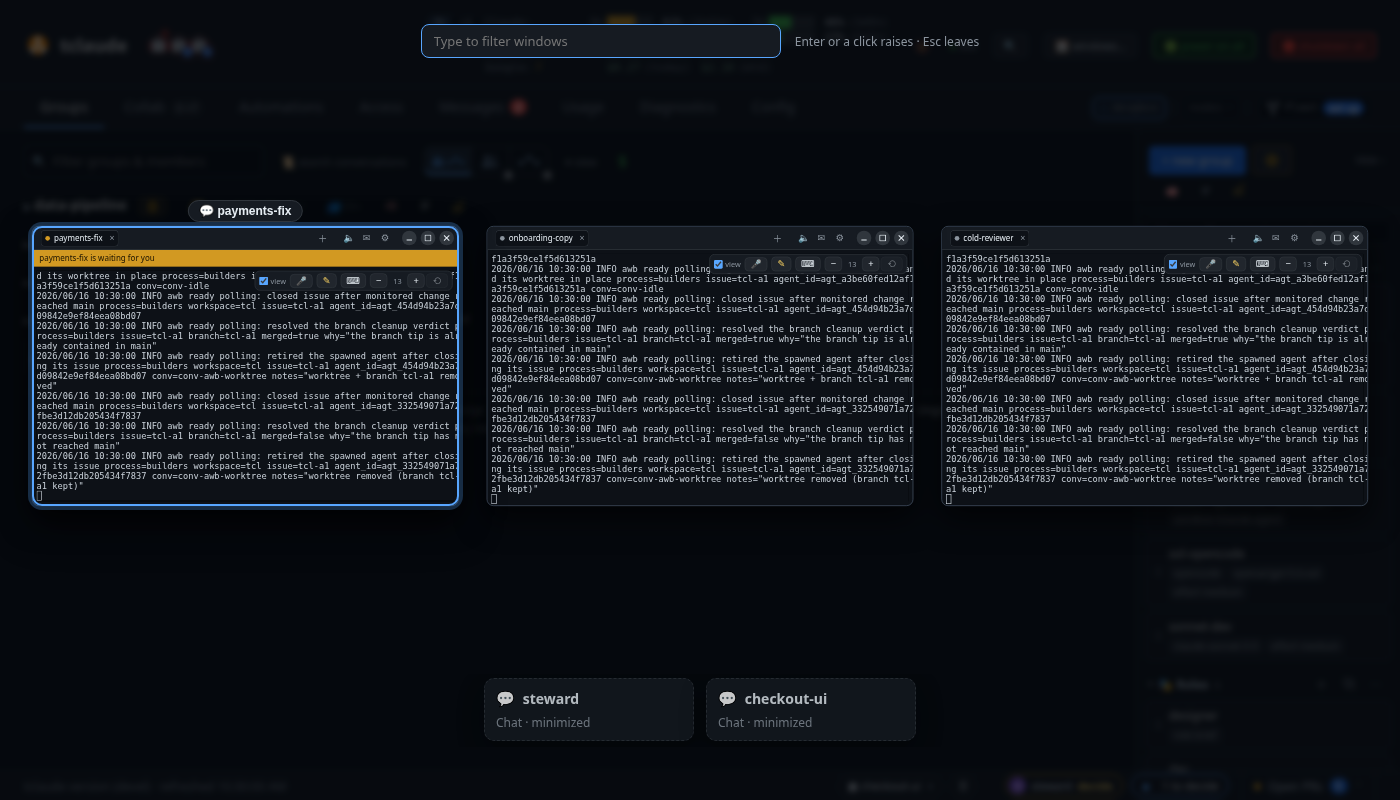 - Untile all windows floats every tiled window where it is, so nothing moves on
screen, and takes it out of the split. A minimized window keeps its cell, and a
maximized window stays maximized.
- Minimize all windows sends every window to the dock. A tiled window keeps its cell.
- Restore all windows brings every minimized window back, into its cell if it had one.
A tab minimized on its own stays on the dock.
Ctrl ; minimizes every window, and pressing it again brings back just the windows it minimized and are still on the dock: a window you open, or bring back and minimize again, in between stays where you left it. It works from a focused terminal too, and can be rebound in Config › Keyboard.
While any window is open, the dock shows its ☰ menu even with nothing minimized.
Minimizing and restoring are animated, the same way whichever control did it: the window's –, its pill, Ctrl ;, Minimize all and Restore all, and the Steward's Ctrl . and pill. The window itself, live content and all, shrinks into its pill (the Steward's into its pill beside Open PRs, a window folded into +N or ☰ into that button) and grows back out of it, in about a fifth of a second. Several windows at once follow one another closely, the front one leaving first. Pressing again mid-way turns the window round from where it is. A terminal that is still attaching never shows black: the window moves at once and shows the last screen it had, or "Connecting…" when it never had one, until the live terminal is up. With your system's reduced-motion setting on, windows go and come at once.
The dock
The dock rests at the right of the footer. From the right: Open PRs, the Steward's pill, then ☰, with a pill for each minimized window or tab to its left. It takes only the room the footer has left, and never covers or pushes the other controls. When the pills don't all fit, the ones that don't fold into a +N button at their left end, which lists them; it takes an amber edge when one of them needs you. With no room even for one pill beside +N, they fold into ☰ itself, which then shows how many and lists them under its actions. Only after that, with no room left at all, does the Steward's pill leave the footer. On a phone the footer drops the version text and keeps the refresh time and ☰, with the Steward's pill beside them when it fits. The dock's menus open upwards, above any overlay window.
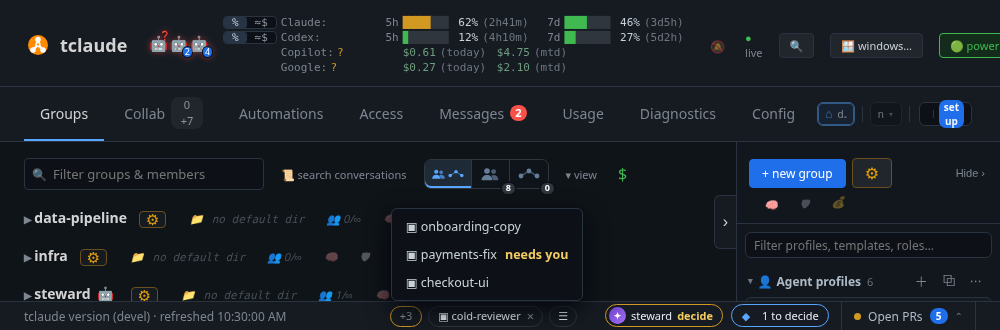
A tab's – minimizes that tab to the dock and stops nothing, and so does Minimize tab on its
menu, beside Minimize other tabs and Minimize all tabs. These never ask, even for a Steward,
because nothing stops. Its pill brings it back to the
window it left, or to a new window where that one stood.
The window's – keeps its tabs together on one pill, showing the active tab and a count.
The window's close button is different: it closes the window, and its tabs leave the dock too, as the × on a pill takes them. A tab's × does the same for that tab alone. Nothing stops. Agents and shells keep running in the background, and a reload does not bring the window back. Open them again from wherever you opened them: the Groups tab, the palette, the Collab tab. A floating process editor with unsaved edits asks first, and stays if you keep them. A running Steward is the exception: it asks first, then shuts down.
To take something off for good, use the × on its pill: it unpins an agent, which keeps running, and closes a shell's or drawing board's window. A pill for several tabs has no ×, so bring the window back first. A Steward's pill has none either: shut one down from its ⚙.
Talking to an agent
Type in its terminal, just like the Collab tab. You get the harness's own streaming, prompts and Esc interrupts.
view, the mic 🎤 and ✎ float at the terminal's top right, dimmed until the pointer is on them. They take no room from the terminal, and clicks anywhere else reach it. view is ticked by default and attaches the page you're on to dictated messages, so the agent knows what you're looking at. A text field and Send float at the bottom while you dictate.
✎ (Ctrl Shift .) lets you draw over the page and send it to the agent. Circle, underline, point or write freely. The agent gets a picture of the view with your ink on it, as a file attached to the message, plus a numbered line for each mark. Sending is your decision, so the agent doesn't need permission to capture your dashboard. Marked secrets are masked in the picture, as in a capture. Only that agent can fetch it, unless other agents run without a sandbox, which can read your whole tclaude data directory. An agent on another node, or a picture it refuses, gets the lines only, and the notice says so.
Answering permission requests
When an agent asks for access, click 🔑 approval on its pill, 🔑 in the title bar, 🔑 on its terminal tab, or Review on the access banner. A panel titled 🔑 Waiting for your OK opens at the right, over whatever you're doing. 🔑 N to approve covers agents with no pill.
Each card has a countdown, +5 min, Deny and Approve (or Approve plan). At zero it declines by itself. Always allow? Open in Messages takes you to the full card. Requests that need a closer look, such as those from peers, are collected in a link to Messages. Esc closes the panel.
Decisions
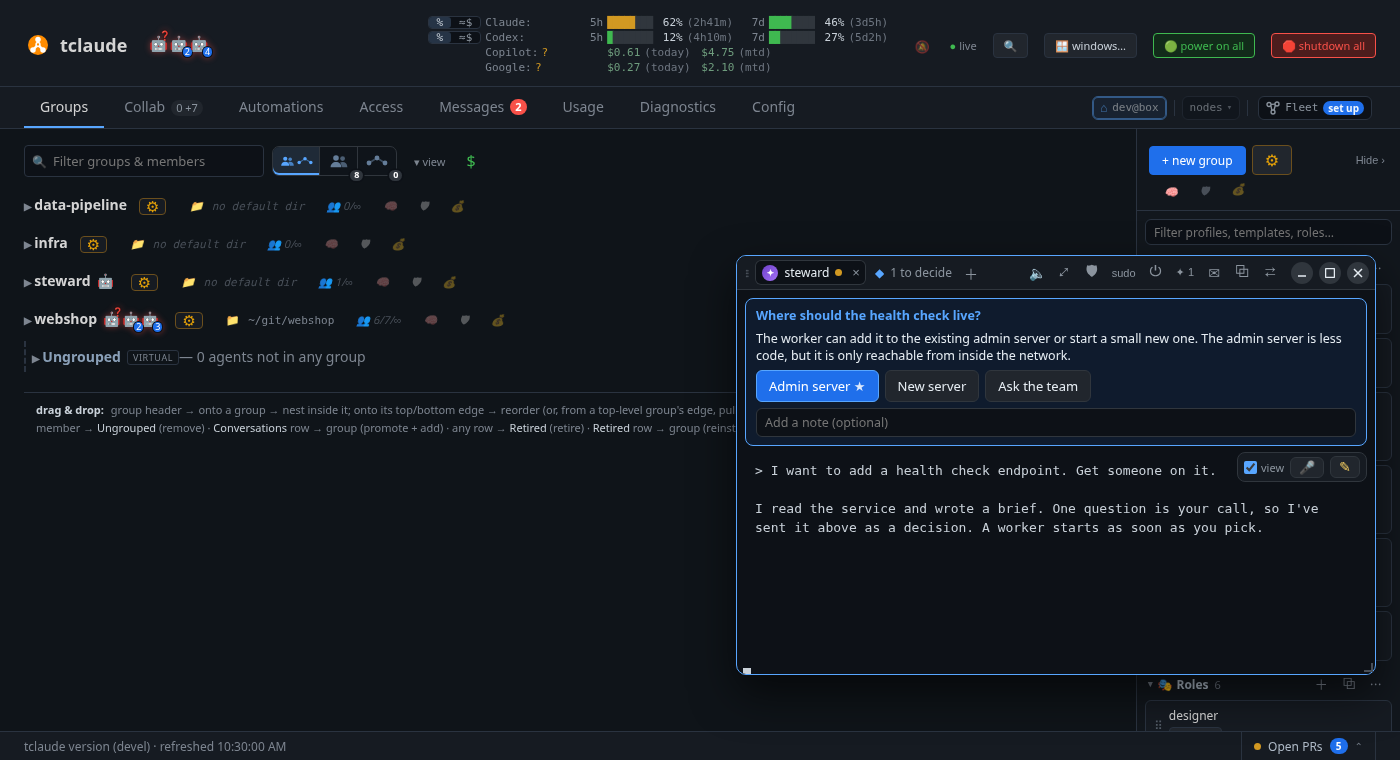
When an agent asks you to choose (tclaude agent notify-human --option, two to
six options), its tab shows the question, any mock, and a button per option.
The agent's recommendation has a ★. You can Add a note (optional). Your
choice goes back to the agent as mail, even if it's offline.
Decisions from every agent also wait in one queue: a ◆ N to decide pill, and a tab of the same name in the window. The same buttons are in the Messages reader, without the note.
When a decision no longer matters, Dismiss takes it off the queue without an
answer. Dismiss all (N) in the to-decide tab asks once, naming the count, then
dismisses exactly the decisions listed there. Each agent that asked gets one inbox
message naming its dismissed decisions, so it stops waiting. A dismissed decision stays in Messages, marked
Dismissed by you (or by the agent, which can withdraw its own with
tclaude agent notify-human dismiss <id> or --all, with a reason). An answer and a
dismissal can't both happen: whichever comes first counts, and the other is refused.
Decisions from a peer node are answered and dismissed on that node.
Action links
An agent can put one button on a message (tclaude agent notify-human --action),
in Messages and, while the message is unread, in its chat. × dismisses it from
chat by marking the message read.
| Action | What the button does |
|---|---|
terminal |
Opens a shell in the agent's own directory |
drawing_board:<id> |
Opens that drawing board |
pr:<url> |
Opens a GitHub PR the agent presented with present-pr |
tab:<name> |
Goes to a dashboard tab: groups, terminals, automations, processes, plugins, access, messages, usage, diagnostics or config |
The list is fixed, so an agent can't offer a free URL or command. It names an action and the daemon works out the target and writes the button's text. A terminal link can only be the agent's own tracked directory, and nothing happens until you click. The click is in the audit log and marks the message read.
A terminal runs as you, outside the agent's sandbox, and the agent can write to its directory, so check the path on the button first. If the agent moves before you click, the click is refused and the button shows the new path. A shell already open for that agent is reused, wherever it is now. The agent never gets the shell's input or output. If the agent has retired, the drawing board was deleted or the PR is no longer presented, the button is off and says why.
Action links only work on the node that holds the message: a peer looking at this node's messages sees no button.
Voice and dictation
Voice. 🔈 turns voice on for that agent's tab (🔊). When its turn ends, its last message is read aloud. Code is skipped, tables are dropped, links become their text, and long replies are cut short. It also says when the agent needs you, and reads decisions with their options. Typing in the terminal stops speech. It uses your browser's built-in voices. It reads the agent's transcript, so it doesn't work on OpenCode.
Dictation. 🎤 dictates into a draft, and the draft takes the keyboard. End with "send now" to send it; no pause is needed, and the phrase stays out of the message. It only counts at the very end of a finished phrase, so a sentence that merely contains it, or the word "send", is plain text. Enter or Send sends what's in the draft, also while the mic is on. Press the button again to stop, and the keyboard goes back to the terminal with the draft kept. Typing in the draft stops the mic so you can edit. If the browser ends listening by itself, the keyboard stays on the draft.
A message dictated to an agent starts with [dictated], so the agent knows why
sensible symbols may be missing. A draft stays marked after you edit it, typed
messages aren't marked, and the marker never reaches a plain shell. Turn it off in
Config › Voice.
Pauses can add punctuation while you dictate to an agent: a comma after a short one, a period and a capital after a longer one. Both are off by default and set in Config › Voice, and both must be shorter than send after silence. Timing comes from when the recognizer reports words, so it's approximate and a mark can land a word off. Marks the recognizer added aren't doubled. Plain shells get none, and neither do languages written without spaces or with their own marks.
Change the phrase, or untick it to turn spoken send off, in Config › Voice. Dictation listens in your browser's language, so pick a phrase in that language.
Where the audio goes. Without on-device speech, Chrome sends it to Google's service. Download on-device speech in Config › Voice has Chrome fetch a language pack, after which recognition stays on your machine. tclaude doesn't ship it, Chrome manages it, and nothing downloads without that click. Once installed it's used automatically, and the draft shows which is in use. If it fails at the start of a dictation, that dictation falls back to Google's service and tells you.
Hands-free (opt-in, all off by default).
- Wake phrases. The focused phrase, "hey agent" by default, starts dictating with no click; words after it start the draft, without a trailing send phrase, which doesn't send here. The Steward phrase, "hey stewie" by default, always switches to the Steward, opening or focusing its window, and dictates there. A Steward in a window of its own gets focus instead, and you dictate there. It never starts a Steward: with none running you get a short notice. One listener hears both. A phrase needs two settings on: its own checkbox and the wake phrase listener. Neither changes the other, and Config says so when only one is on. A phrase of common words may fire by mistake. Dictation goes to the terminal or chat window with focus, or the only one showing. Otherwise nothing happens and the indicator says so. Plain shells get a draft as usual. This keeps a microphone open while a tab is showing, so without on-device speech everything said in the room goes to Google's service for as long as it listens. On-device speech is recommended.
An indicator at the top of the page shows whenever it's on, says where the audio goes and has Pause. It stops while the tab is hidden, runs in one tab at a time, and waits while the mic is in use or a reply is read aloud. After repeated errors it stops and says why. If on-device speech stops working, it stops rather than switching to Google's service. - Continuous mode. After a voice message sends, the next thing you say sends another, with no wake phrase, while the agent is still working. Each one after the first sends on send after silence, or after 3 seconds if that is off, and queues while the agent is busy. It stays on the agent it started on: changing focus, closing that terminal or hiding the tab stops it, and speech never moves to another agent. The Steward phrase is the one exception: said in continuous mode, it ends there and starts on the Steward, and what was in the draft stays with the old agent, unsent. So do Esc, Stop, typing in the draft, a failed send, saying the stop phrase ("stop listening") on its own, and silence, 2 minutes by default. The draft shows it's on. It stops rather than sends when the agent is blocked on you, at a prompt or held on an approval request, so it can't answer one. An open decision doesn't stop it: the agent has carried on, so your words go as a normal message and the decision stays open. Plain shells, peers' agents, detached terminal windows, Gemini CLI and pi get one message at a time. The microphone stays open, so without on-device speech everything said in the room goes to Google's service for as long as it runs. Replies aren't read aloud while it listens.
- Send after silence. With no new speech for a set time, 3 seconds by default, the draft is sent to the agent. It counts down first: Esc, Cancel or speaking again stops it. It never runs in a plain shell.
With both on, sound in the room can send mail to an agent, and Config warns about that.
The same tools float over agent terminals in the Collab tab. No reply is read while any mic is open, and starting one mic stops another. It uses your browser's speech recognition, and in Chrome the audio is recognized by Google's service.
Where dictation can't work, the mic is disabled and its tooltip says why. That
covers browsers without speech recognition, and plain HTTP pages away from localhost.
Browsers refuse the microphone on those pages, so no site permission helps. To
dictate, open the dashboard on localhost or over HTTPS, for example with
tailscale serve. 🔈 voice doesn't need the
microphone and still works on plain HTTP.
Marking up a page
✎, or Ctrl Shift ., puts a drawing layer over the page. Circle, underline or
draw an arrow at what you mean, add a note, and press Send. The agent can't see
your screen, so each mark goes as words: what it is and which control is under it,
such as 1. circled "Approve plan" (button), along with the page you're on. Esc
cancels and Ctrl Z undoes the last stroke.
The Steward
The Steward is an agent for all of tclaude. Summon it by clicking ✦ Steward,
then Summon the Steward. It lives in the steward scribe group. Ask it what you
can do on a page, how your groups are configured, or to help set up groups, profiles,
processes or your sandbox.
What to ask it
- "Brief me." It tells you what needs you, most urgent first, and can open the agent that's waiting, as an overlay tab.
- An idea. It restates the idea, asks what it can't find out itself, writes a brief, then starts a worker or a task force once you approve. It follows the work through to presented PRs and puts taste calls to you as decisions.
- Setup. It inspects first, asks only what it can't infer, shows a numbered plan, and asks for the permissions for the whole plan once, for a limited time.
It follows the bundled tclaude-fleet and tclaude-setup skills. After upgrading,
run tclaude setup --install-agent-skills to install new skills.
The Steward can also point at the dashboard. It can see which view you're on, switch you to another, ring a control with a note, mark things up, and open an agent as an overlay tab. A cue only points. It never presses anything, and it can't mark approval or decision controls. It plays once and fades after about 14 seconds. While you're typing or dictating, a hand-over only pins the agent, so your words still go where you meant them.
What it knows
The Steward has a knowledge base of tclaude's docs, pinned to the build you are running, and uses it before guessing. Its answers match your version, not whatever it remembers. You can add the source as well, with a download the dashboard asks you about. If your build has uncommitted changes or names no commit, the knowledge base says so.
What the Steward may do
Set this under Config › Steward. The daemon grants it when a Steward is summoned, and a running one keeps what it started with, so retire it to apply a change.
| Setting | Options |
|---|---|
| Reads | Operator level (default): fleet, drawing boards, the dashboard view, processes, triggers, usage, costs, host and federation activity. Fleet and drawing boards only: just those. Both list every agent and group. |
| Writes | Message agents (default): can reach any agent. Drawing boards and notifying you only. Message agents and start workers: can also spawn and set task links. |
| Default permissions | What a new Steward gets beyond Reads and Writes, or is denied from them. Opens the permission editor, and saves from there. |
Every level can draw on drawing boards, point at the dashboard and notify you. Anything else
it asks for with --ask-human, and you approve it in the dashboard. Message
agents also reaches agents on linked instances that accept mail, so use Drawing boards
and notifying you only to rule that out.
To change a running Steward's access, use ⚙ > Permissions and ⚙ > Sudo in its title bar. They need it to be running.
In both, each grant on a live Steward is for This Steward only, the default, or All future Stewards, which stores it and gives it to every new Steward, denies and scopes included. Stored sudo keeps its original expiry: a new Steward never restarts the clock. The editors show which of the three sources each grant comes from: this Steward, all future Stewards, or the Reads and Writes levels. Changing or revoking a stored grant applies to later Stewards too, and the revoke says so, while revoking an instance-only grant affects that instance alone. A revoke by an agent stops at the instance: only you change what is stored. A stored deny outlasts anything done to one Steward: lift it here or in Config > Steward.
Config > Steward > Default permissions edits the same stored list in the common
permission editor, without a Steward running. It shows what a new Steward would
hold, and you can deny any slug Reads or Writes give or grant any other, with scopes
where a slug has them. With dashboard.capture denied, a new Steward's brief leaves
capture out, and the view tick says capture off for any Steward without it.
Older steward.default_permissions values move to this list when the daemon starts.
Stewards that are already running catch up when the daemon starts or when they resume: each gets what its levels now give and a message saying so. Saving Config > Steward does not change one on its own. Each slug is given once, so this only adds: a deny stays, and so does a permission you took off that Steward. A level slug with a stored deny is not given. Stored permissions reach new Stewards only.
While an agent in the window holds elevated access, its tab and pill show 🔓, and a band above its terminal lists what it holds. End sudo appears when it holds temporary sudo and ends that, with no confirmation; it can ask again. A sudo grant stored for all future Stewards ends for them too, and the band says so on that grant. Permanent access is listed but stays, including standing permissions stored for future Stewards: change standing permissions in the 🛡 editor or Config > Steward, and access from a group or from owning one in Groups.
Making another agent the Steward
Any running agent can become the Steward. Choose ✦ make Steward… in its ⚙ menu, on Groups, the fused fleet view or a terminal tab. ✦ in the Steward's title bar does the same, and holds the roster. Only you can do this: there is no permission or sudo for it, so an agent can't make itself or another agent the Steward, even if a message talks it into trying.
The confirmation shows what changes:
- What it gains. Your Reads and Writes levels, default permissions and what you stored for all future Stewards, as for a summon, plus the brief, capture guide and knowledge base, by message.
- What it already holds beyond that. This stays, and becomes part of what the Steward can do, so it's listed, with a warning if the agent can hand out permissions. A deny on a Steward permission stays too.
- What happens to the old Steward. Keep on the roster, Keep as a normal agent or Retire it.
The new Steward keeps its conversation, context, harness, working directory, sandbox
and groups, and joins the steward group alongside them. The rest of the fleet
doesn't change. A sandboxed agent stays sandboxed: Steward commands reach the daemon
over its socket, and files such as captures have to go where it can write. Any
harness can be the Steward except a plain shell, and an agent visiting from another
node can't. Voice doesn't work on OpenCode, as for any OpenCode agent.
An offline agent can take the role too. Its brief waits until you resume it.
One active Steward, and the roster
One Steward is active. steward, your chosen name, the companion's ✦ and a
changed-name message all mean that agent, even while it's offline, apart from the
one fallback for steward. Until you first
choose, the newest running Steward is the active one. Summoning a Steward yourself
makes the new one active. Only you can summon one: an agent's summon is refused,
whatever it holds.
Agents on the roster are normal agents, without Steward access, so only the active Steward holds it. ✦ in the title bar lists them:
| Action | What it does |
|---|---|
| Switch | Makes a standby active in one click, and the old Steward goes on the roster. If the standby holds more than a Steward's defaults, the confirmation opens first. |
| Stand down | Takes the active Steward out of the role with nobody in its place. It goes on the roster and keeps running. |
| × | Takes a standby off the roster. It stays a normal agent. |
| Make another agent the Steward… | Finds a running agent and opens the confirmation. |
Leaving the role removes what the role gave and nothing else. What you granted that agent separately, in its permissions editor or with sudo, stays, and the confirmation lists it. Coming back gives the role's access again, except anything you took off it yourself. If you summon a new Steward while the active one is offline, the old one goes on the roster the same way, once the new one is running. Retiring an agent takes it off the roster.
An agent going on the roster has its scheduled jobs and standing orders paused, and is told so. They run again if it takes the seat, except any you disabled yourself. One kept as a normal agent keeps them running. One aimed at a group that has emptied waits for that group instead. Taking a standby off the roster leaves them disabled until someone enables them.
Other live Stewards, such as a second one summoned earlier, stay as they are and show as also running. Only one is active, and Switch makes one of them active.
Shutting it down
⚙ > Shut down…, or the window's ×, shuts the Steward down, after asking: it stops, and keeps its seat, its conversation and what it holds. After that, and whenever no Steward is running, the window and ✦ Steward offer two ways on:
| Action | What it does |
|---|---|
| Resume | Brings back the same agent on the same conversation, and says how long ago it last ran. It catches up with its levels as any Steward does when it resumes. |
| Start fresh | Summons a new Steward, with no memory of the old one. The old one goes on the roster without Steward access, and its conversation stays in history. It keeps what you gave it separately, as anything leaving the role does, and the window lists that first. |
With no earlier Steward, the window offers only the summon. A detached Steward window has the same ⏻ in its header. Its Resume brings the agent back in that window, and its Start fresh closes the window and the new one opens in the companion. To end an agent for good, retire it.
Clearing context
⚙ > Clear context gives the agent on the active tab a fresh conversation, after asking: the same agent, identity and permissions, and it remembers nothing from before. The old conversation stays in history. It is a reincarnation with no handoff, so it works on every harness except a shell, and it is also a mode of the Reincarnate agent dialog. A Steward gets its role brief again. Any other agent gets its identity, its group and profile startup context and a pointer to its original briefing, unless its group's re-injection setting narrows that.
Other Steward settings
- Spawn profile: what a new Steward launches with. Unset, it uses the global default profile.
- Name: what you call it, up to 32 characters. The companion shows it, and agents
can message it by that name as well as by
steward. A running Steward gets a message when you change it here. - Startup prompt: your own instructions, up to 10,000 bytes, added to what every new Steward is told.
These settings can only change on this node's Config tab. Agents and linked instances can't read or write them, and config bundles don't carry them.
Messaging the Steward
steward reaches the active Steward. If it's offline, the send fails and says so,
unless an external steward can take the message. Your chosen
name never falls back that way. An agent can answer a message from the Steward with tclaude agent reply <id>,
whatever its groups and permissions. Writing to it first, with tclaude agent message
steward, needs message.direct or a shared group, like any other agent.
steward and your chosen name always mean the Steward, even if another agent has
that name.
Commands behind this
tclaude agent steward chooses the Steward from your own terminal. It's for you
only: the daemon refuses an agent.
tclaude agent steward ls                            # the active Steward and the roster
tclaude agent steward set <agent>                   # show what would change
tclaude agent steward set <agent> --then keep --yes # do it; --then is roster, keep or retire
tclaude agent steward step-down [agent]             # leave the role, nobody in its place
tclaude agent steward rm <agent>                    # take a standby off the roster
tclaude agent fleet is the brief. It lists agents in every group, including
ungrouped ones, with status, task link and presented PRs, then ranks what needs you:
approvals, permission prompts, questions, failed turns, agents being recovered,
presented PRs, unread messages, and agents idle for ten minutes or more. Offline
agents are counted, and --all lists them. --group <name> narrows it, and --json
gives the raw brief. It needs fleet.read.
tclaude agent guide drives the pointing. guide view needs
dashboard.view.read. Its time on the view counts from the last view
change, so it grows while the operator stays put; its connection line says
when a tab last reported and a page last polled. guide show needs dashboard.guide:
tclaude agent guide show --tab <tab> --target "<visible text>" --note "<note>"
tclaude agent guide show --path <path> --circle "<text>" --underline "<text>" \
  --arrow "<from> -> <to>"
tclaude agent guide show --open <agent>
fleet.read also lifts the group scoping on tclaude agent ls
and shows group default directories in tclaude agent groups ls, so the
Steward can name any agent or group you have open. It changes only what is
listed: who it can message is still decided at send, and group environment
values stay with you.
A cue holds up to six marks. These slugs and fleet.read are given to a Steward when
it's summoned, and aren't granted to other agents by default.
Capture
tclaude agent guide capture -o view.png shows the Steward what
you see, with dashboard.capture, which it gets when summoned and other agents
do not. It saves an image of your dashboard and prints the cursor position and
what is under it, the focused control, any selected page text, the viewport, and the
open drawing board with the region on screen. --json gives the same as data.
The tab renders its own page, so a capture holds only that dashboard page,
never another window or your desktop, and needs no browser prompt. Terminals are
rendered as their real text. Every capture shows you a notice naming the agent,
which is left out of the image. With several tabs open it takes the focused
one, else the visible one heard from last. A hidden tab is never captured,
because you would not see the notice, so the command then fails and says so; it
also fails when no dashboard is open. The daemon stores a capture only when
asked to with --save.
A capture shows whatever is on screen, including open messages and terminal output, which reaches the Steward even though it cannot read agents' mail through the API. Password fields and fields holding tokens, keys or environment values are masked, in the image and in the text that comes with it. Text selected inside a field is never reported. Hover styles are not reproduced, and the cursor is drawn as a marker. An iframe shows as a labelled box. It works in Chrome, Edge and Firefox; Safari refuses to read back the render, so the command fails there.
Form values as text
tclaude agent guide capture --form also prints the open form as text, so an
agent can help you fill it in. It needs dashboard.forms.capture on top of
dashboard.capture. That slug is not given to anyone by default, the Steward
included: you assign it to the agents you want reading forms, and it works the
same for any agent. The notice says when values were read.
The image and the text come from one snapshot, taken at one moment and filtered once, so what is masked in one is masked in the other. A password is never delivered to an agent in either, even when a show button has made it readable.
- The image stays your viewport, exactly.
- The open form is the topmost dialog, or the Config tab. Its text covers the
whole form, including fields scrolled off screen, every option of a dropdown,
and collapsed sections and inactive tabs, which are labelled
collapsed. A collapsed part with no field in it is left out, and a section the page has not built yet only shows as a[collapsed]control. - With no form open, the text covers what is on screen.
- A list showing one page of its rows says so, for example
showing 30 of 200
  rows
. - Terminals appear as
[terminal]. Their output has no secret marker, so it stays out of the text, although the image shows it. - A confirm dialog's diff masks any key with a secret-like name, what is nested
under one, and whatever it can't parse, so a corrupt
config.jsonis masked whole. --savekeeps the image and context, never this text.
Rule for new surfaces: a capture can only mask what is marked. Any element
that shows a secret needs data-capture-mask, and that includes a plain element
echoing one, such as a preview, a diff or a confirmation, not just the field it
was typed into. A test catches unmarked secret-named inputs and a diff body that
doesn't use DiffLines, but nothing can catch a secret in any other plain
element, so mark it when you write it.
Each field line gives its label, type, id and value:
Form: Spawn a new agent (the whole form, including what is off screen or collapsed)
Name [text, #agent-spawn-name]: "reviewer"
Harness [select, #agent-spawn-harness]: "Claude Code" (options: Claude Code, Codex)
API key [password, #api-key]: [masked]
A tab showing a peer's dashboard (?node=) counts as open, and guide view,
capture and marks work on it: they belong to this node's agents and to you at
this browser, not to the peer. So a capture can show this node's Steward what a
peer shares with you, and --save keeps that on this node. The peer is not
told. The companion window itself stays off a peer's page, and cues from guide
show do not play there.
Marks
tclaude agent guide mark <kind> lets the Steward draw on your view
to get your attention, with dashboard.mark, which it gets when summoned and
other agents do not. A mark is a highlight, circle, underline, box,
arrow, freehand stroke or label, on a control named by visible text
(--target) or selector (--ref), or on a screen region (--region). --blink
pulses it, unless your system asks for reduced motion. Marks follow their
control as the page scrolls and resizes; a region follows the page's scroll.
They never take a click: only the buttons on a mark's tip, and Dismiss all
marks, respond to the pointer, and clicks on the rest of a tip reach the page
under it. Neither a mark nor its tip lands on an approval control.
Every mark has a tip with ✓ (got it), × (dismiss) and Reply. Reply sends your answer to the agent as mail naming the mark and its tip, so you need not say which one you mean, and the mark stays up. Each mark times out on its own: 60 seconds by default, 10 minutes at most. At most 10 marks are up at once, and a tip is at most 280 characters; past a limit the request is refused. A tab shows marks only while on screen.
Marks are stored, so tclaude agent guide marks (paged, with --state) lists
active, expired, dismissed, acknowledged, cleared and replaced marks, with who
ended each and how. The newest 1000 ended marks are kept. Captures show marks
and report whether each was drawn, so the Steward can confirm one landed.
Knowledge base
tclaude agent knowledge reads the docs and source of the build the daemon is
running, with knowledge.read, which a Steward gets when summoned and other
agents do not.
tclaude agent knowledge status                     # the pin, and how exact it is
tclaude agent knowledge search "guide mark" -i     # docs first, then source
tclaude agent knowledge read companion.md#capture  # a page, or one section of it
tclaude agent knowledge read pkg/claude/agentd/steward.go --lines 100-160
tclaude agent knowledge ls pkg/claude/agentd
A docs page ends with the pages it links to and those linking to it, so the links
work as a graph: read a link's page.md#section to follow it. Every command takes
--json, which gives the links as data. A long file comes back in part and says
which lines to ask for next.
Every answer starts with how far it can be trusted:
| Label | Meaning |
|---|---|
exact |
A clean build of a known commit, or a release. Docs and any source there is match what is running. |
dirty |
A commit plus uncommitted changes. Docs are as built. Source is that commit without the changes. |
unknown |
The build names no commit, such as go build from an extracted tree. Docs are as built, and there is no source. |
The docs are built into the binary, so they work with no checkout and offline. The
source is not: it is an optional download that only you can start. Reading the
knowledge base never downloads anything, and an agent can't start or approve a
download. Without the source, docs still work and knowledge status says it isn't
there and how you can get it.
When a Steward exists and the running version has no source, the dashboard asks
once. The card says what it is, about 18 MiB from github.com/tofutools/tclaude,
about 28 MiB on disk:
| Answer | What happens |
|---|---|
| Yes, this version | Downloads now. The next version asks again. |
| Yes, every new version | Downloads now, then by itself for each new version, when a Steward is summoned or the daemon starts with one. |
| No | Downloads nothing and doesn't ask again. |
The download runs in the background, so nothing waits for it, and a card shows its progress. GitHub doesn't send an archive's length, so the bar measures against the expected size. A failure stays on screen with Try again.
Your answer is kept as steward.source_download (ask, each_version or never),
under Config > Steward > Knowledge base, where you can change it. The same place
shows what is stored and its size, with Download now and Remove. Remove
deletes the copy and sets the choice to never, so the question doesn't come back.
A version already held is never fetched again. The copy lives under
~/.tclaude/data/knowledge, and only the running build's copy is kept: a new
download replaces the old one, and the daemon clears other versions when it starts.
Tests, vendored and minified files, source maps, lockfiles and binaries are left out
of it, which is about half the tree. A download for a commit must name that commit;
one for a release tag trusts the tag.
The daemon holds the copy and only answers reads, so an agent can't change it. It needs no new filesystem access, whatever the sandbox. It holds what ships with tclaude and nothing of your setup: no config, startup prompts, messages or credentials. Screenshots and the preliminary v2 designs are left out.
Filling in forms
tclaude agent guide fill --form spawn --set agent-spawn-name=reviewer puts
values into your open form, so an agent can propose them while you stay in charge.
It needs dashboard.forms.fill, which isn't given to anyone by default, the
Steward included. Any agent you assign it to can fill, and everything it shows
names that agent. The spawn form and Config take fills. Field ids come from
guide capture --form.
- A fill never submits and presses nothing. You read what landed, then act.
- A select takes an option's label or value, and a checkbox
trueorfalse. A type-to-filter box, such as the spawn form's group or worktree, takes a choice's label or value, as the capture lists them. It can be named by its own id or by its box's (agent-spawn-grouporagent-spawn-group-input). - Values go through each field's own handling, so a harness change updates its
dependent fields and the normal validation runs. A field reports
filled,filled_changedif the form altered the value, or why it was refused. - Filled fields stay highlighted, and a bar next to submit lists them. Undo all puts back what was there. Config also flags the changed sections on its rail, because a fill can reach a section that isn't open.
- In the spawn form, an Undo all that undoes the whole fill also puts back where each value came from. The directory follows the group again, and a profile picked afterwards sets the harness and its sandbox and approval again. Undo leaves alone a field you have edited since the fill. If the undo can't restore every field, those fields keep counting as set by hand. Config keeps showing unsaved changes after an undo, though saving then finds nothing to save.
- A field you edited stays yours: a fill won't touch it, before or after, and Undo all keeps your edit. That includes anything your own change moved, such as the fields a profile pick set, and a directory you browsed to. A queued spawn's stored values count as yours. If undoing a harness removes a value you picked for it, the field stays listed in the bar. A fill of the harness is refused while the form holds context trims, because changing harness would clear them.
- Some fields reset others: a harness resets its sandbox, approval and model fields, for example. A fill of one is refused while you own what it would reset. Otherwise everything it moved is listed, warned about and undone with it.
- A password or a field marked secret can't be filled, so environment values can't either. The spawn form's disabled and hidden fields are refused too. So is the spawn form's profile, because clearing one resets most of the form, and Config's list fields, such as permissions. A spawn that launches itself from the queue takes no fill, and Config takes one only while its tab is open and loaded.
- A change that can widen access shows an orange highlight and a warning, such as
Stewie widened: sandbox, approval, even when a fill only moved that field by cascade. On the spawn form that covers harness, group, directories, sandbox, approval, tools, owner, trust and similar fields. In Config it covers everything except the Appearance section. Whether a value is actually wider depends on the harness, so any change warns.
Fills apply in order, one at a time, so set a harness before its model. A hidden tab is left alone, as with a capture.
Saved captures
guide capture --save keeps a capture on this machine
under ~/.tclaude/data/captures, and guide captures and guide captures get
<id> read it back, so the Steward can recover what has been going on, for
example after compaction. The newest 50 are kept, up to 256 MiB in all; the
oldest go first.