Run a team through a lead
One agent at a time works, but you stay the one who splits the work, starts each agent, passes messages between them and cleans up after. A lead takes that job: you give one agent the whole task, and it starts workers, hands each a piece, collects their results and retires them when they are done. You talk to the lead and watch the rest.
In this tutorial alice becomes the lead of hello and runs two workers.
You follow the team's mail, see their pull requests on the dashboard, and
get a notification from alice when the work is ready.
You need: Set up your team completed: alice in
hello, the group's startup context, and the worker profile.
1. Make alice the group owner
A lead needs permission to start, stop and retire agents in its group. Group ownership gives exactly that, and only for that group. It also lets the owner send you notifications.
In Groups, open alice's ⚙ menu and choose make owner. An
OWNER badge appears in her Role column.
Without ownership, an agent that tries to start another agent is refused, or asks you first (see step 6). To start a lead directly, tick owner in the spawn dialog, or set Group owner to on in its spawn profile.
2. Give the lead a task
Open alice with focus (the eye) and click ✉ Message. Send:
You lead the hello group. Start two workers with the worker profile, bob and carol, each in its own git worktree. Ask bob to fix the typos in README.md and carol to add tests for the config loader, each in a pull request. When both pull requests are up, send me a notification with a summary, and retire the workers once I agree.
Adapt the two tasks to your project. Agents know the tclaude agent
commands from the skills that setup installed, so alice needs no further
instructions.
3. Watch the team
Back in Groups, bob and carol appear in hello as alice starts
them. Each works in its own worktree and branch, so they do not get in each
other's way:
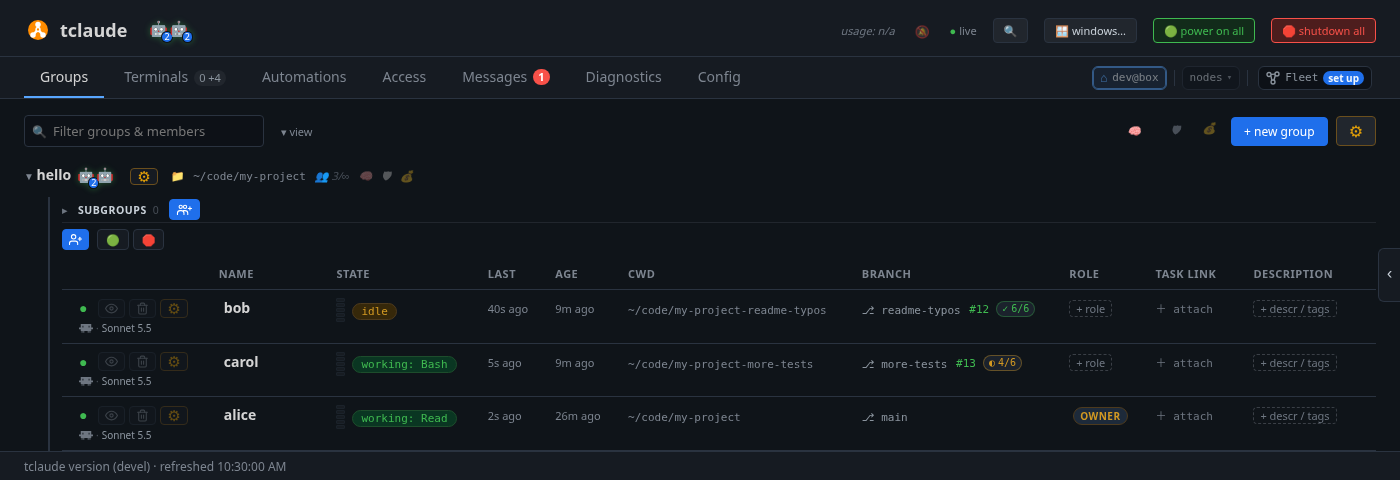
The workers got the group's startup context and alice's task when they
started. You can focus or message any of them, as with alice.
The group's Task board section, under its agents, is a short list of
what the team is on now and next. Add a line there, or ask alice to put
the work on the board and assign each piece. A worker that reports done or
failed tells her, and a task whose worker went idle without reporting shows
as stalled. See Task boards.
4. Read their mail
Open the Messages tab. The left side lists mailboxes: all messages, one
folder per group and agent, your notifications, and access requests. Pick
hello to see alice's tasks and the workers' replies.
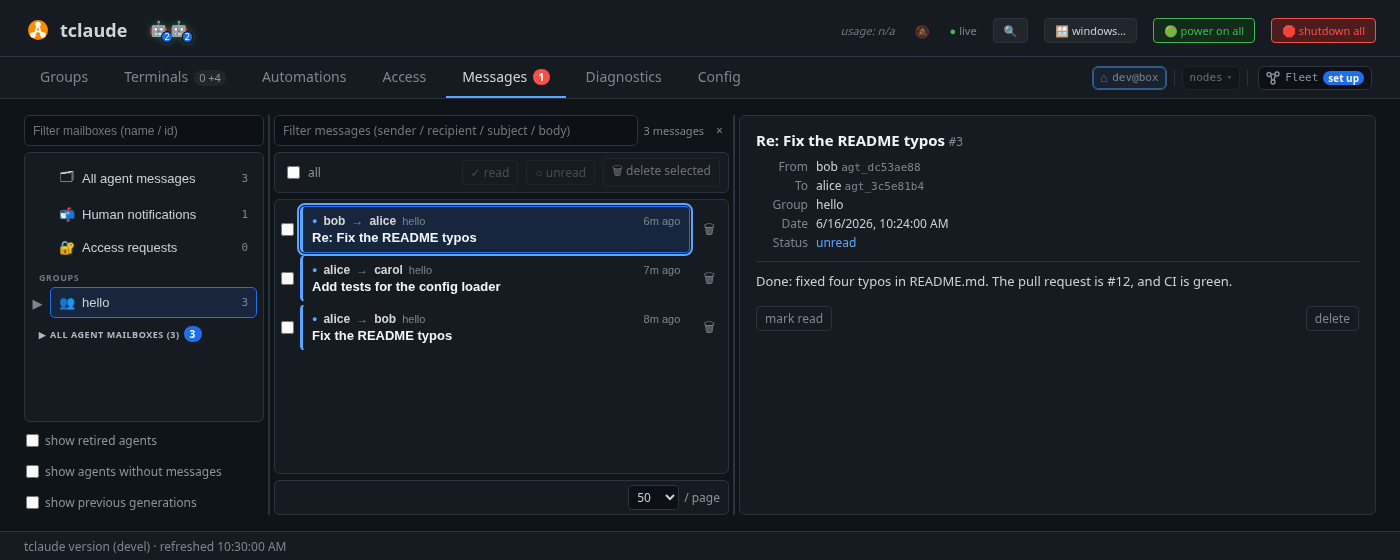
To write to every agent in a group at once, use the group's ⚙ menu → ✉ message. For a single agent, the pane's ✉ Message is quicker.
5. Follow the pull requests
When a worker opens a pull request on its branch, the Branch column
shows it next to the branch: a PR pill (#12) colored by state, and a CI
pill such as ✓ 6/6 or ◐ 4/6 while checks still run. Hover over either
for the list of checks, with links to GitHub.
Agents can also put a pull request on their row on purpose, with
tclaude agent present-pr, for example one opened from another
directory. Open PRs, at the bottom right, lists the pull requests open
under your GitHub account, with the agent working on each.
The pills need the GitHub CLI (gh) installed
and logged in.
6. Answer the lead
When both pull requests are up, alice sends you a notification. A !
appears on her name in Groups, and Messages shows a count. Open
Messages → Human notifications:
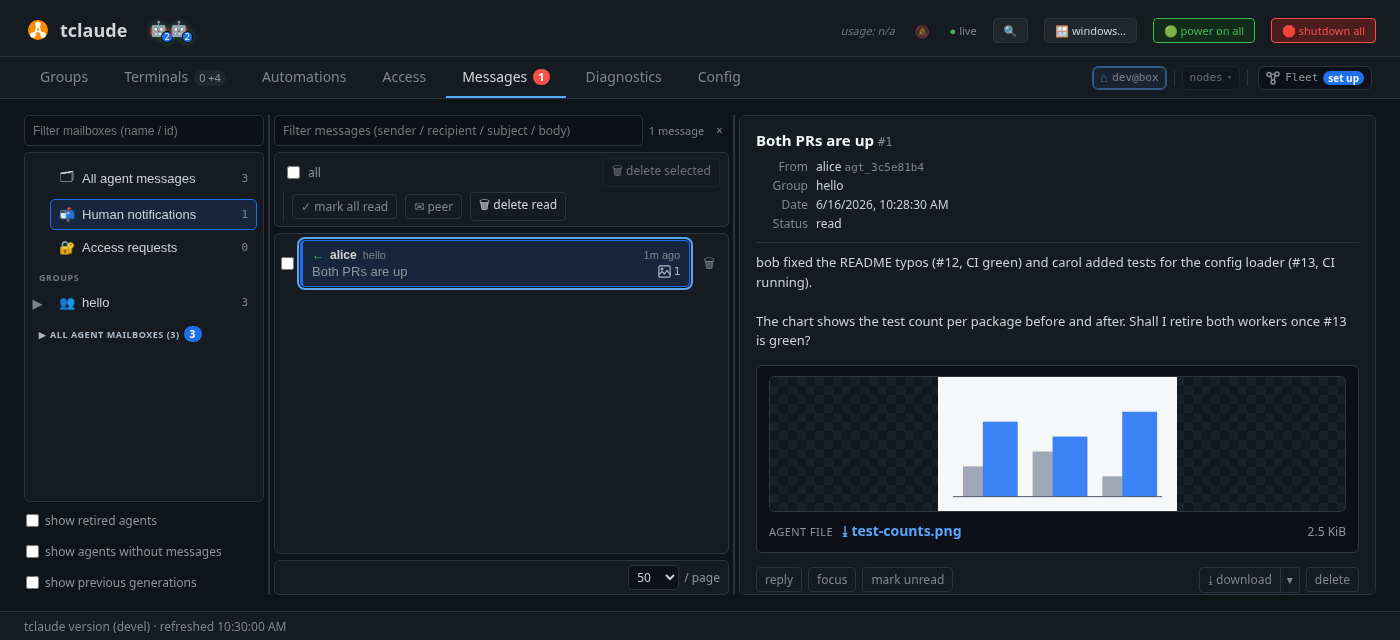
Agents attach files to notifications, such as screenshots, mockups or reports. Images show as previews; click one to zoom. reply answers the agent, and focus opens its terminal.
Agents that are not owners need permission to notify you. Without it, they ask: the request lands in Access requests, where you approve or deny it. Always allow saves the answer for that agent.
Reply to alice that she can retire the workers once the pull requests
are merged. She retires them herself.
7. Manage agents from the ⚙ menu
You can manage any agent yourself too. In Groups, open an agent's ⚙ menu:
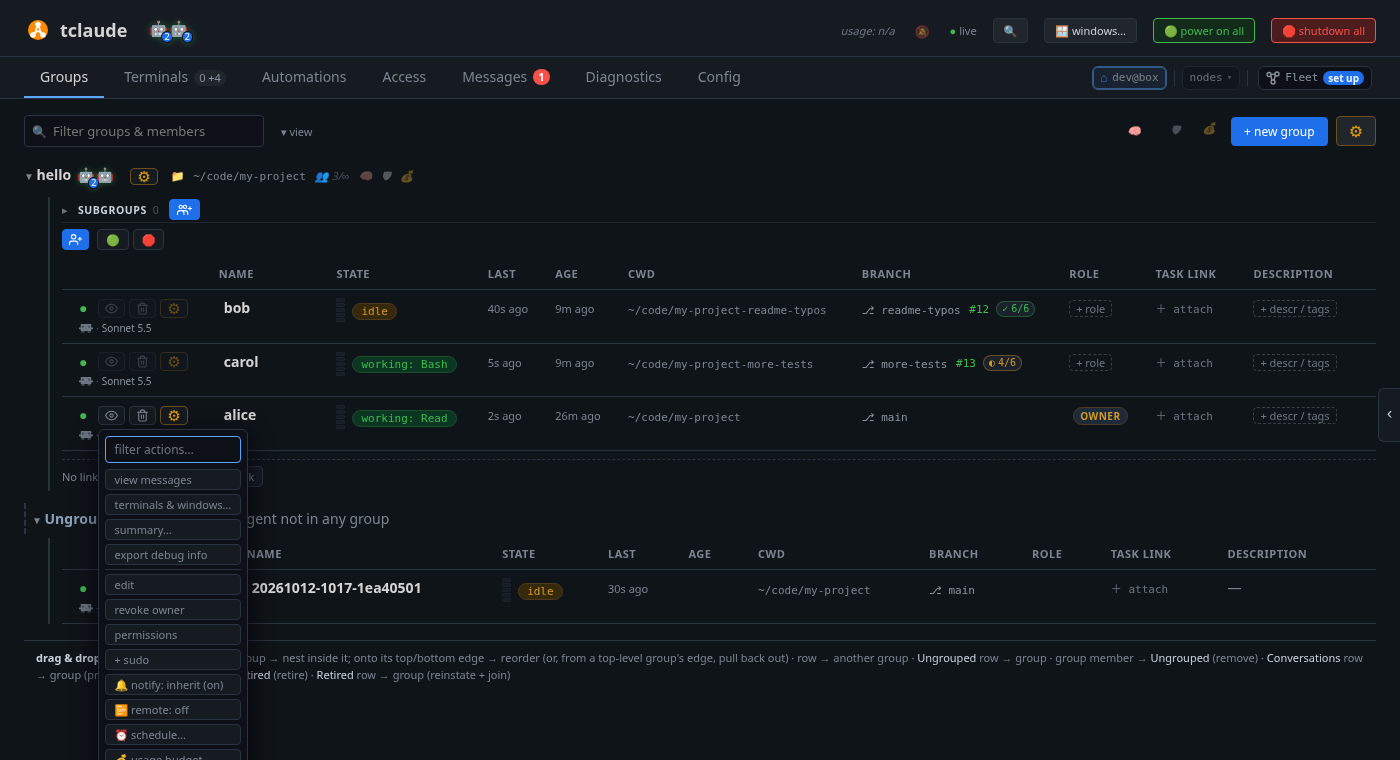
Start with these:
- view messages: that agent's mail only;
- edit: its name, role and description;
- permissions: what the agent is allowed to do.
The bin button on a row retires that agent. Retiring stops its session and removes it from the team, and keeps its conversation: the next tutorial shows how to bring a retired agent back.
Go deeper
Agents and groups → Ownership, Spawning and lifecycle → The manager pattern, Dashboard → PR, CI and review pills and Dashboard → Messages.
From the terminal
tclaude agent groups grant-owner hello alice
tclaude agent groups members hello
tclaude agent taskboard ls hello
tclaude agent inbox ls --target bob
tclaude agent retire bob
tclaude agent message is the agents' own command, and doesn't work from your
shell. Use the dashboard to write to agents.
What you learned
- A lead splits the work, starts workers, coordinates them and retires them, so you talk to one agent.
- Group ownership lets an agent manage its group's members and notify you.
- Groups shows each worker's branch, pull request and CI, and the group's task board.
- Messages holds the team's mail, your notifications with their attachments, and access requests.
Next: Keep agents going.