Groups
Groups is the dashboard's home tab: every group, every agent in it, and what each one is doing. Use it to see who needs you, start agents, and open any agent's terminal. For the rest of the dashboard see the dashboard tour. For what groups mean, see Agents and groups.
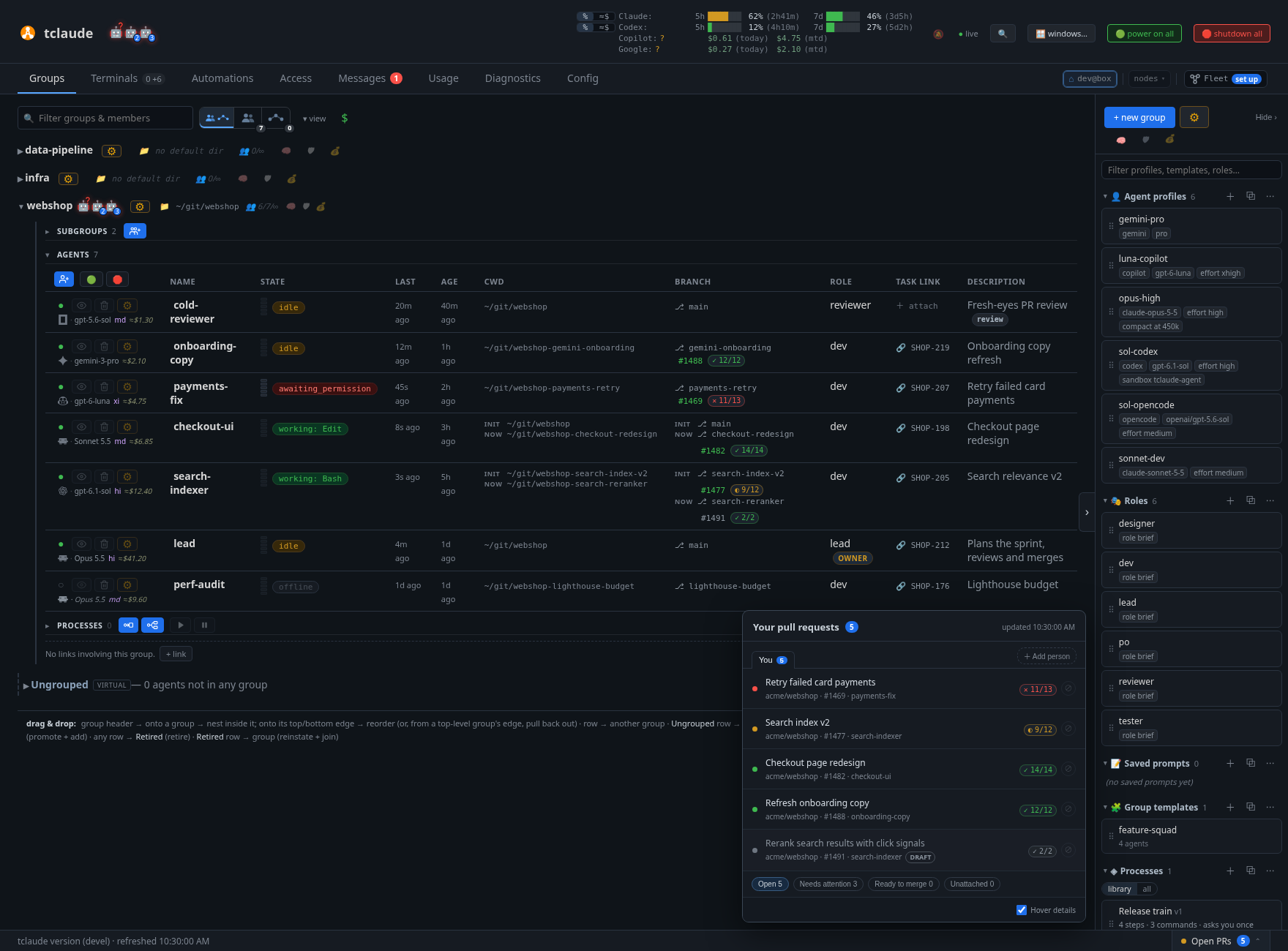
The Groups tab, with the library panel on the right
The toolbar
Above the groups, from left to right:
- Filter groups & members. Matches group names and each member's title, role, description, directory and branch. A count shows how many are left; × clears it.
- 📜 search conversations. Opens a panel that searches the text of past conversations. See Searching conversations.
- Route map. With
features.groups_route_mapon, a Route map view sits beside the list; see Group routes. - ▾ view. What the list includes and which columns it shows. A badge on it counts what you changed from the defaults. See What ▾ view controls.
- $. Shows or hides cost on each row. It is hidden when there is no cost to show.
While the right panel is open, + new group, the actions ⚙ and the default profile pickers sit at the top of that panel. When you hide the panel, they move to the toolbar.
The ⚙ actions menu has a filter box, like every ⚙ menu in the dashboard:
| Item | What it does |
|---|---|
⤒ import… |
Import an agent or a group from a file. See Exporting and importing. |
📸 snapshots… |
Open this node's snapshot library. |
🧹 clean up |
Unjoin, retire, delete or reinstate in bulk. |
🗑 delete retired… |
Delete retired agents. |
⧉ profiles…, ⧉ templates…, ⧉ roles…, 🛡 sandbox profiles… |
Open the library managers. |
⇄ cross-harness spawns… |
Set which harness may spawn which. |
🔗 links… |
Manage group links. |
What ▾ view controls
show offline and show ungrouped are on by default. The others are off: show retired, show conversations, show replaced generations and show offline scribes. Your choices are saved by the daemon. A group's ⚙ menu overrides show offline for that group: click 💤 to cycle through the tab default, shown and hidden.
Below them, Columns lists what you can hide: ID, State, Process, Last, Age, CWD, Branch, Role, Task link and Description. ID is off by default. Click a column header to sort.
Last, Processes picks which runs each group's Processes section shows: Running, Planned and Done, each with its count. Running and Planned are on by default, and at least one stays on. It is there only where processes are available.
Bottom of the page
Extra rows appear at the end of the list, depending on ▾ view:
- Ungrouped: agents in no group. It has the same Agents and Resources sections as a real group. Resources lists the drawing boards that are in no group, such as one made from the Collab panel's + New. To move a drawing board into a group, use its ⋯ → Move to group.
- Conversations: sessions tclaude knows that are not agents yet. promote makes one an agent.
- Retired: retired agents, with who retired them and why. reinstate brings one back.
- Replaced generations: older versions of an agent that has reincarnated.
Searching conversations
📜 search conversations opens a box above the groups; the command palette has it too. Type at least three characters and it searches titles, summaries, first prompts and transcripts for that text, ignoring case. It covers this node's conversations, not a peer's.
Each result shows its best matches and what you can do with it: promote a plain conversation into an agent, reinstate a retired agent, or copy id for anything that is already an agent or an older generation. To resume a conversation, promote it and then start it from its agent row.
Each search runs once, when you stop typing, and takes at most five seconds.
It reads the newest conversations first and shows up to 50 results, so the line
under the box says when older ones weren't reached. Archived conversations
aren't searched, and transcripts stored compressed or outside plain files are
matched on title and first prompt only. For a regular expression or a complete
scan, use tclaude conv search --content.
A group
Click a group's name to fold or unfold it. Next to the name are the group's activity bots and its ⚙, then quick options. Those fold to icons and expand when you hover. To turn that off, use Group quick options in Config › Appearance, or 📌 pin quick options open in the group's ⚙ menu.
| Icon | What it is | Click to |
|---|---|---|
| 📝 | Description (when shown) | Edit it |
| 📁 | Default directory | Edit it; 📁 browses; Ctrl-click (⌘-click on a Mac) opens a terminal there |
| 👥 | Members and cap, such as 2/∞ |
Change the cap (0 means none) |
| 🧠 | Default spawn profile | Pick one |
| 🛡 | Default sandbox profile | Pick one |
| 💰 | Default usage profile | Pick one |
| 🔗 | Links, when the group has any | Open them |
Inside the group are folding sections: Subgroups, Agents and Resources. Each remembers whether you folded it, per group. Subgroups has one button: create a subgroup. Agents has three: spawn into this group, 🟢 power on everyone offline, and 🛑 shut down everyone running. Resources has the + menu, resume all and pause all; resume and pause act on the group's live runs and stay greyed until there is one. Every section places its buttons the same way: on the section line while it is folded, and on the first row under the line (the member table's header, for Agents) while it is open. A click on a button on a folded line opens the section too, so what you create shows up.
Below the sections is the group's list of links, with + link.
The group ⚙ menu
| Item | What it does |
|---|---|
⚙ settings… |
Name, description, default directory, startup context, spawn profile, saved prompts, sandbox profile, environment, member cap, notifications, remote policy, link |
+ add member |
Add an existing agent |
⏰ schedule… |
Set up a cron job for this group |
📋 standing orders… |
Set up standing orders |
✉ message |
Write to the group, or to some of it |
🗂 view messages |
Open the group's folder in Messages |
📋 set startup context… |
What every agent joining the group is told |
☆ make directory auto-join default |
This group wins when bare tclaude finds several groups for the directory (needs a default directory) |
🔑 group permissions… |
Grants for every member |
⇄ cross-harness spawns… |
This group's harness spawn rules |
🔔 notifications: on |
Mute or unmute the group |
📱 remote policy: inherit |
The default for new agents: opt-in, deny or inherit. A spawn's own setting still wins. |
📌 pin quick options open |
Keep the quick options expanded |
rename, 📂 nest under…, ⧉ clone… |
Organize the group |
⧉ save as template…, ⤓ export… |
Reuse or move it |
🧹 cleanup |
Bulk cleanup for this group |
↓ pull repositories…, ↻ sync repositories… |
Update its repositories |
🧹 cleanup worktrees… |
Review and remove worktrees |
🪟 windows… |
Focus or hide its agent windows |
🖥 open web terminal |
A shell in the default directory (needs one) |
delete group |
Delete it |
Drag and drop
Drag a group header onto another group to nest it, or to its top or bottom edge to reorder. Ctrl-drag (⌘-drag on a Mac) a header to clone the group. Drag an agent's row to another group to move it. In Resources, drag a drawing board or page row to another group the same way; drop a drawing board on Ungrouped to take it out of every group. A Retire bin appears while you drag: drop a row there to retire it, or a queued spawn to discard it. Drag from Retired to a group to reinstate an agent. Dragging a Conversations row to a group promotes it and adds it. From the library, drag a profile, role or template onto a group to spawn. Once a drop lands, the receiving group opens and a short blip marks the spot.
The member row
Each agent is one row. The first column has the status dot, then icons for
focus window, retire, and ⚙. Agent hide button in
Config › Appearance adds a hide window icon. Below them is the harness line,
such as a Claude Code logo, then Opus 4.8 hi $0.42: harness, model, effort and
cost. Hover the logo for the harness name. A harness with no logo, such as pi,
shows its name as text.
- The status dot is
●online and○offline. Click it to turn the agent off (exit gracefully or force kill) or wake it. - Cost.
$x.xxis real spend.≈$x.xxis a what-if estimate for subscription use: what it would cost per token, not a charge.
| Column | Shows |
|---|---|
| Name | The agent's name. Click to rename. A ! means unread notifications. |
| State | Context meter, state pill and badges |
| Process | Which process step the agent is on |
| Last | The last hook event |
| Age | How long since it started |
| CWD | Start directory and current directory, marked init and now. Click to open a terminal there. |
| Branch | ⎇ branch (a link to the forge), then PR and CI pills and any PRs presented with tclaude agent present-pr. GitLab merge requests get the same treatment when the project is on a configured instance. |
| Role | + role to set it; owner marks a group owner |
| Task link | A link to the work item; + attach to add one (or tclaude agent task) |
| Description | + descr / tags to add text and tags |
| ID | The short agent ID (hidden by default) |
The state pill is one of: working, idle, idle + work (background work is
still running), awaiting_permission, awaiting_input, error, crashed,
restarting, crash loop / backoff, offline, waking…, recovered
automatically, recovery suppressed or exited. A plain shell shows running.
The agent ⚙ menu
Items only appear when they apply to that agent.
| Group | Items |
|---|---|
| Look | view messages, terminals & windows…, summary… (online agents), export debug info |
| Change | edit, make owner / revoke owner, permissions, + sudo, notify on/off, remote on/off, ⚡ enable fast mode (Codex), ⏰ schedule…, 💰 usage budget… |
| Restart | reincarnate, ↻ restart, ⚠ restart without sandbox / 🔒 restore sandbox + restart, 🧩 sandbox implementation / profile… |
| Send elsewhere | move to…, teleport to…, clone to… (clone… without a fleet), 📸 snapshot…, ⤓ export (PAF)…, morph…, ⌂ recall home… (when visiting) |
| Remove | In a group: remove, retire. Ungrouped: retire, delete. |
summary… starts an export that appears in Automations › Exports.
export debug info downloads a JSON file with what was requested, what resolved and what is running: spawn parameters, sandbox settings and launch evidence. It works while the agent is offline. It includes environment values and local paths, so treat it as sensitive; task text and one-time tokens are redacted.
Opening a terminal
- The focus icon jumps to the agent's web pane, or its native window when Default terminal is set to native in Config › Terminals & windows.
- The hide icon, when turned on, detaches a native window. The agent keeps running.
terminals & windows…gives all four choices: Open session window, Open session in browser, Shell in its directory and Shell in browser.
Browser terminals open in the Collab tab.
Badge glossary
Badges only show when they apply.
| Badge | Meaning |
|---|---|
| 🤖+N | N sub-agents still running |
| ⚙+N | N background shell commands still running |
| 👁+N | N monitors still watching (log tail, CI poll, websocket) |
| 🚫 | agentd has refused N callbacks from this session; see below |
| 🔒 | Sandbox confined |
| ⚠ | Sandbox off, unknown, not enforced or partly enforced. Hover for the details. |
| 📱 | Remote control on (Claude Code, best-known state). Click to open the session. |
| ⚡ | Codex fast mode. Click to turn it off. |
| 🔓 | N active sudo grants. Click to manage them. |
| 💰 | Usage budget |
| ◆ | Running on a subscription sent from another node |
| ⌂ | Visiting from another node, or back home |
⇢ morph |
A morph is in progress |
🚫 means the row is frozen. Status, model, cost, context and directory all stay at their last accepted value, so don't trust the row. The usual cause is a dead session row on the same process, or a session ID mismatch. See Logs for how to investigate it.
The sandbox badge tooltip gives the status, which sandbox applies, the profile and any resource limits. Click it to turn the sandbox off temporarily or restore it (not for Codex built-in sandboxes). See Sandboxing.
The context meter
Five segments, green to yellow to red. The tooltip reads like context: 120k /
200k tokens (assumed cap) — 60%. The note in brackets says where the cap came
from: configured, reported by the harness, from the model catalog, or assumed.
Subscription quota is not on the row; see
the header and Usage.
PR, CI and review pills
- PR pill (
#1234, or!7for a merge request): colored by open, draft, merged or closed. Rest the pointer on it for a details card: title, author, branches, diffstat and the start of the description. A merge request's card is read from the GitLab API and names its project; on an instance without the diffstat fields it leaves the counts out. - CI pill (
✓ 12/14): glyphs ✓ ✕ ◐ ·, not counting skipped checks. Hover or focus it for a checks panel, failures first, with live timers and a link to GitHub (the pipelines tab, for a GitLab merge request). On merged and closed PRs it only shows when the final run failed, unless CI on finished PRs is on in Config › Appearance. A re-run check counts once, by its newest run, as ingh pr checks. A PR with more than 400 checks gets a dashed? 400/400+pill: agentd read only part of the checks, so it gives no verdict unless one it read failed, and a click opens the PR's checks on GitHub. - Review pill: a person icon on open, non-draft PRs. Green with a count is approved, red with a count is changes requested, amber means a review is required, grey means none yet. Only human reviews count. Hover for each reviewer's latest review. A GitLab merge request gets the same pill: its approvals, its reviewers' change requests, and amber while the project's approval rules want more approvals. GitLab records no time on an approval, so its rows show no age. An instance older than reviewer states (GitLab added them after approvals) shows approvals only. agentd notes, per instance, which newer fields an instance lacks (reviewer states, the details card's diffstat, the recently closed query) and stops asking for them until it restarts. After upgrading GitLab, restart agentd to get them.
PR and CI data comes from git and gh, or the GitLab API for a merge
request, cached for 90 seconds.
Open PRs
Open PRs in the footer lists your pull requests across the fleet.
- Filters: Open, Needs attention, Ready to merge, Unattached, Closed, and Ignored when you have ignored any. Each shows a count. Drafts are grey and stay out of Needs attention unless you tick Include drafts there. Ready to merge is approved PRs with passing CI. Requested changes count toward Needs attention.
- Hover a title for the PR details card. Untick Hover details in the popover's footer if it gets in the way. It is one setting with Open MRs.
- ⊘ ignores a PR for 1 day, 1 week, 30 days or permanently. Restore under Ignored brings it back.
- + Add person adds a tab for someone else's PRs, up to eight people. ✕ on
the tab stops tracking them. Their PRs do not count toward the footer number.
You only see PRs your
ghlogin can see. - Open all on GitHub opens the current list.
Rows stay ordered by repository and PR number, so updates don't move them. Archived repositories are never listed. If GitHub rate-limits you, agentd pauses its background GitHub calls for 5 minutes, up to 30 while the limit holds.
Open MRs
Open MRs sits next to Open PRs and covers the GitLab instances in
agent.git_proxy.gitlab_hosts (see GitLab proxy).
It shows once a configured instance has answered, whether or not gh is
installed. Without a gitlab_hosts entry or a token it does not show at all;
a gitlab.com project needs a "gitlab.com": "https://gitlab.com" entry.
The footer carries two numbers. mine counts your open merge requests,
where "your" means the user that gitlab_token_file belongs to; it turns blue
when one of them needs attention. all counts everyone's open merge
requests that the token can see. For an admin token that is every project on
the instance.
The popover opens on Mine. Next to it is one tab per project with open merge requests, holding everyone's: projects your agents work in come first, then the busiest. A project tab's rows also say who wrote each merge request, and Open in GitLab opens the project's own list.
- Filters: Open, Needs attention, Ready to merge and Unattached, with counts. Ready to merge is at least one approval, a passing head pipeline, and no merge conflict. Needs attention means ready for a decision: the pipeline has finished, red or green, or there is none; or the merge request conflicts with its target; or changes were requested. A pipeline still running with nothing failed does not count. Drafts are grey and stay out of Needs attention unless you tick Include drafts, which is the same setting as in Open PRs.
- Rows read
!7for merge request 7, and note conflicts. The CI pill shows the head pipeline's state; hover it for the pipeline's jobs. The review pill follows it. A project tab's row shows approvals, and a reviewer's change requests too when the merge request is yours or an agent's. - Open all on host (on Mine) opens that instance's list of your merge requests. An instance that could not be read says why, above the list.
agentd asks each instance once every 30 seconds. Your own list is a single
GraphQL query, and its reviewers' states a second one. Everyone's list starts with GitLab's REST merge request list,
which names the projects and covers the 500 most recently updated open merge
requests. Up to 20 projects per instance are then read through GraphQL, five
per query: those your agents work in first, then the ones with the most open
merge requests. Past either cap, the remaining projects are left out and the
all count ends in +.
A token limited to some projects (a fine-grained personal access token) may
not call the instance-wide list; GitLab answers 403. agentd then reads
everyone's merge requests project by project, from the projects it already
knows: those your agents work in, then those of your own open merge requests,
then every agent.git_proxy.allowed_remotes entry that names one exact
project on the instance (a * entry names none). The same 20-project cap
applies. The popover says how many projects were read this way; it is not an
error. A project in none of those lists does not show. agentd asks the
instance-wide list again every 10 minutes, so a token given wider access
switches back by itself. Only when the per-project read fails too, there is
no project to read, or none of the projects read answered (each is a group, a
deleted project, or one the token may not read), does the popover show an
error, with both reasons.
If the project-wide read fails while your own list
answers, the project tabs keep their last lists and say so. The instance is
not marked as failed. That needs a GitLab recent enough to have
detailedMergeStatus (16.x is safe); an older one reports the missing field
instead of a list. A rate-limited instance is retried after the wait GitLab
names, up to 5 minutes, and keeps showing its last list meanwhile. Hovering a
title opens the merge request's details card, under the same Hover details
setting as Open PRs. ⊘ ignores a merge request for 1 day, 1 week, 30 days
or permanently, as in Open PRs and in the same store. It leaves Mine, every
project tab and both footer numbers, and waits under Ignored with a
Restore button. On Mine, Closed _N_d lists your merge requests
merged or closed in the last N days, the same dashboard.recent_pr_window_days
window as Open PRs (0 turns it off), with the same Final CI switch. It is
read every 150 seconds; a closed merge request keeps its last pipeline status
and is not read again. Project tabs have no closed list, and the people tabs
are Open PRs only.
Starting agents
Creating a group workspace
+ new group opens Create group. Start from is Blank, an existing Group, or a Template. Then set the name, where to place it, and the Workspace:
- Use existing directory points the group at a folder.
- Clone repository clones from GitHub over SSH or HTTPS, using the daemon's own credentials, and makes the checkout the default directory. It creates missing parent folders. If a clone fails, the dialog stays open so you can retry. The repository URL can be stored as the group's link.
The rest is optional: startup context, environment, max members, link.
The spawn dialog
To start an agent, use the spawn button inside a group, drag a
profile, role or template onto the group, or press Ctrl K (⌘ K on a Mac) and type
spawn. It runs the same path as tclaude agent spawn; see
Spawning and lifecycle.
For most spawns, pick a Profile, give it a Name and an Initial msg, and press Spawn (Ctrl Enter, or ⌘ Enter on a Mac). The rest of the form overrides the profile:
| Fields | Use them for |
|---|---|
Profile, Clear, Save as profile… |
Fill the form from a saved profile, or save this form as one |
| Group, Name, Initial msg, Saved prompts, Attachments | Who it is and what it should do. Attachments (upload, drag or paste) become part of its briefing. |
Roles, Display role, owner, Permissions…, Context… |
Role, ownership, permissions at birth, and a preview of its context |
| Environment, Descr, Task link | Environment overrides, description, link to the work |
| Harness, Fast mode, Model, Effort, Auto-compact window, Context max, Usage from, Claude login | What it runs on |
| Sandbox, Sandbox profile, Usage profile | Confinement and spending limits |
| Approval policy or Permission mode, Approval reviewer, Tool governance, Question timeout | How much it may do without asking. The dialog warns about high-autonomy choices. |
| On resume | What a later resume or reincarnation of this agent re-reads and what it keeps: a summary of each relaunch policy row that differs from its default, with where it comes from (a profile, this spawn, or the global table). Edit… sets rows for this spawn only: Default leaves a row to the spawn profiles and then the global table, Follow global takes the global table even where a profile sets it, and the other buttons pick a mode. Each row's [?] says what it covers, and a collapsed list under the rows names every other input by layer. The global table is in Config › Launch. Save as profile… carries the rows. Shown for a spawn on this node only. |
| CWD, Worktree repo, Worktree, New branch, Base branch | Where it works. See Git worktrees. |
| Checkboxes | Auto focus a terminal, include the group's context, start with remote control, and harness-specific options |
⏸ Add to queue (Ctrl Shift Enter, or Shift ⌘ Enter on a Mac) saves the spawn without starting it. Queued agents show as rows with ▶ to start them, and a ⏸ queued chip in the toolbar lists them. Drag a queued row to the Retire bin to discard it.
The Spawn queue
With capacity limits
set, a Spawn queue block sits above the groups. Its first line shows how
many agents count toward max_live_agents, whether there is room, how many
spawns wait, and the configured thresholds. Below it, the spawns waiting for
capacity are listed in queue order, local and from peers (tagged remote),
with who asked and how long each has waited. ✕ cancel takes one out of the
queue; for a peer's request, cancelling denies it. A group with waiting spawns
shows a ⌛ N queued chip. When nothing waits the block is a single capacity
line, and with no limits set it is not shown.
These are different from ⏸ Add to queue above. That saves a draft until you start it; the Spawn queue holds spawns that were asked for and wait for capacity.
Saved prompts are covered in the library.
Task forces
A group deployed from a template with a mission shows a task force card: 🎯 hide info folds it, and ↻ re-brief, ⏻ stand down and any ▸ advance for phases act on the whole team. See Teams at scale.
Agents and processes
Each group card shows its sections: Subgroups, Agents, Processes and Resources. A section with nothing in it is hidden, and a group with nothing running and nothing attached shows Resources as a single line.
- Agents is the roster, with run counts on each group header and an optional Process column. Hover an agent to draw dashed lines to the steps it performs, and hover a step to see its performers.
- Processes shows the group's runs as live graph cards. Open a run to
inspect nodes, answer decisions, reassign performers, and pause or resume.
An open run has its own address,
/groups/runs/<group>/<run-id>, so Back closes it.
Where processes are not available (a peer that does not share them), each
group shows its roster only. The older /groups/agents and
/groups/processes addresses open /groups.
To make a process, open the + menu on the group's Resources section and pick ◈ New process: an untitled draft of the group's opens in place, as a graph, with its name ready to type. To start a run, pick ▶ Run a process…: the start form runs a saved process for the group or for one agent. See Processes › In the dashboard.
Resources
Resources lists everything attached to the group in a table like the agents table, with the columns Name, State, Last, Age, Kind, Lock and Detail, in the agents table's order and look; its column widths are its own. Age is when a resource was made: a drawing board's creation, a page's first show, a saved process's save to the group, a shell's start. Last is its latest change: a drawing board's last save, a page's last show (or its close), a process's latest active run, a shell's last activity. Either is blank when unknown. Its saved processes come first, then their runs, then the rest of the table. The kinds are: - Processes: its saved processes and runs. - Drawing boards: the collab drawing boards linked to the group. - Pages: the live pages its members showed into it, including closed ones saved with the group. - Shells: the group's terminal, in its default directory, and every shell opened in a member's directory (Shell in its directory). An agent's shell lists under the group it was opened from, or else the agent's own group. A shell lists only while it runs: once it exits (or is killed) the row goes away, and the + menu starts a new group shell.
The section's count is its saved
processes, drawing boards, pages and shells (runs are not counted), and a section with
nothing at all says No resources yet.
The + menu makes a new process or runs a saved one, adds a new drawing board
linked to the group or a blank live page, or opens the group's shell (once the
group has a directory). A new drawing board or page first asks for its name, in
a small dialog that says what is made and in which group, with the usual name
filled in and selected: type to replace it, then Enter (or Ctrl/Cmd+Enter) or
Create makes it, and Escape or Cancel makes nothing. The Collab
panel's + New and the command palette's Make a drawing board in … and
Make a live page in … ask the same way. A page's name is its title; members
still address it by its handle in the group (sketch, sketch-2, …). A live
page is a web page a member serves (its dev server or static files), shown
live for you to view and mark up, and for the group to read your marks. A new
one starts blank: sketch on it what to build, and a
member serves the real page into it (see
Live page › A page the operator creates in a group).
Every row wears a state pill that reads the same for every kind: - open in Collab, floating or minimized: this browser shows it as a Collab tab, in an overlay window, or on the dock. - running: a process with an active run. - live (a page) or background (a shell): it runs, open nowhere here. - closed: it exists, and nothing of it is live.
Open, floating and minimized are this browser's own: another browser of yours keeps its own windows.
Each row starts like a row of the agents table: a light in the state's colour, then the same buttons in the same order on every row. The buttons brighten when you point at the row. - 👁 follows the state: it brings an open one forward, takes it off the dock, opens it, attaches a running shell or reopens a closed page. Clicking a shell's name does the same. Clicking a drawing board's or a page's name renames it, as clicking an agent's name does: Enter saves, Escape keeps the old name. Its Collab tab renames it too: double-click the tab or press F2 on it. - 🗑 deletes a drawing board or a page, or kills a running shell, after a confirm. Killing works while the shell is open too; its tab then shows the session ended, or closes, as your close-tab setting says. Dragging the row onto the trash bin does the same. - ⚙ holds the rest. For a page or a drawing board: - Rename…: the name becomes a field; Enter saves it, Escape keeps the old one. Your title for a page stays when its agent shows the page again, unless the agent passes a title of its own; the audit log says when one replaced yours. - Move to group: lists the groups it can move to. A page moves only to a group its agent is a member of, and the marks sent before are dropped, as when the agent shows it into another group. A group's own blank page moves only while closed. - Delete…, behind a confirm, as 🗑 does. - Reload in every view (a live page).
A saved process's row has the same buttons. Its light starts a run, as an agent's light turns the agent on. 👁 opens it here as a graph, 🗑 removes it from the group (the template stays), and ⚙ holds Start… and Edit as a graph.
Each resource but a shell has a lock chip, in the Lock column. It shows the state and is also the toggle:
click it (or focus it and press Enter) to switch between:
- ✎ agents can edit (the default): members read and edit the resource.
- 🔒 agents: read-only: members still read the resource, but no agent can
change it, except one holding groups.resources.lock for it.
You toggle the lock here; an agent can only when you grant it
groups.resources.lock, which also lets it change the locked resource. The
same chip is on the resource's own header: the process editor, the drawing board and
the page. In the Collab view, a locked resource also wears a small 🔒 on its
tab name; its tooltip says what the lock means. Its row in the side panel has
a lock toggle at its right end: an amber closed lock, always shown, while the
resource is locked, and a dim open lock on hover or keyboard focus while it
is unlocked. Click it to lock or unlock. A drawing board tab's right-click menu has
Lock for agents / Unlock for agents. All of these show the same
state, so a toggle in one shows in the others at once. See
Permissions › The operator's lock on a resource.
A peer's group in the fused view lists its resources too, read from that
node, where that node grants you groups.resources.read for the group (the
roster grant alone no longer shows it, nor does groups.resources.lock
without the read grant). Its drawing boards and pages are named
but not opened here. Its lock chips toggle only where that node grants you
groups.resources.lock; otherwise a chip is greyed out and its tooltip says
so. If the node refuses a toggle, a toast says why. See
Connect and share.
To choose which runs show (Running, Planned and Done), use ▾ view › Processes. See Processes.
Moving and saving agents
Exporting and importing
In an agent's ⚙ menu, ⤓ export (PAF)… downloads a PAF file. Choose whether the conversation travels, as Native history, Harness-neutral context or both. If the credential scan finds something, the download waits until you tick Export anyway; I have checked the findings or use Redact…, which previews what it masks and downloads a redacted copy.
A group's ⤓ export… offers .paf (the default) or .zip (legacy) for older
versions of tclaude.
⤒ import… takes either kind, and so does dropping the file on the page. The file decides which preview opens.
- An agent: choose its group, working directory, harness and model. The preview shows how its history lands, the credential scan and the security posture. Import (offline) lands it without starting it; Import & start also starts it. An import is always a fork.
- A group: shows what would collide, plus a table of members where each one, or all of them, can change harness or model. Imported members land offline.
Snapshots
📸 snapshots… in the toolbar ⚙ menu opens this node's snapshot library. An agent's 📸 snapshot… opens it with the create form filled in, or use + take snapshot…. Each row shows the agent, harness, size, expiry and credential findings, with these actions:
- Spawn… starts a new agent from the snapshot.
- ⤓ exports it as a PAF.
- Share… puts it on a Board for named members. You review a
consent summary and type
share. A snapshot with suspected credentials must be redacted first. - Publish… makes a public copy, always masking credentials, paths and
identity. You preview it and acknowledge before the
.public.pafdownloads. - ✕ removes it. prune expired removes every expired snapshot.
Resilience policies are managed with tclaude agent snapshot policy; when any
exist, a table here shows each one's last good snapshot and when the next is due.
Snapshots stay on their node. If a peer trusts this node unrestricted, its agents show 📸 snapshot… and ⤓ export (PAF)…, and its groups ⤓ export…, on its own page and in the fused Groups view. The dialog acts on that node's library, and files download through this node. A public copy or a Board share is made here, from the downloaded file. A restricted peer hides these items.
Pull or sync group repositories
Update the checkouts in your group directories without leaving the dashboard. In
the command palette, use Pull all repositories… or Sync all
repositories…, or search pull <group>. A group's ⚙ menu has ↓ pull
repositories… and ↻ sync repositories….
Pull fetches and fast-forwards. Sync also prunes stale remote-tracking references. Neither ever pushes, rebases or merges diverged history.
The dialog finds repositories in each group's directory and two levels below it, following symlinks, and lists each once. It only shows checkouts on the default branch, so feature-branch and detached worktrees are left out, and it does not scan every agent worktree. Pick repositories, filtering if you like, then press Ctrl Enter (⌘ Enter on a Mac).
- Switch to default branch first starts on. Untick it to pull each current branch's upstream.
- Discard uncommitted changes starts off. Without it, dirty checkouts are
skipped. With it, tracked edits are reset and untracked files are removed with
git clean -fd; ignored files and nested repositories stay. - Parallel updates is 4 by default, up to 100. Each repository gets two minutes.
Diverged branches, branches checked out in another worktree, and in-progress merges or rebases are skipped with a reason. One failure doesn't stop the others. Updates are not atomic: a failed later step can leave an earlier fetch, branch switch or discard in place, so check the repository before retrying. Closing the dialog is blocked while a batch runs, and losing the connection cancels what has not finished.